

Have you ever missed a live episode and wondered if replay is really that simple?
You can skip DVR setup and still watch what aired. Modern streaming services use provider-side recording so you can replay recent broadcasts within set windows.
Replay windows usually range from 24 to 72 hours, and some channels extend that to a week or two. That limit affects what content you can access, so knowing how to check availability matters.
On this page you’ll learn how catch-up works, how it differs from true on-demand libraries, and practical steps for playback in today’s apps. You’ll also see device compatibility tips, EPG navigation, and how to judge performance during prime time.
I’ll mention one US-focused example: GetMaxTV pairs live channels with replay and a large VOD catalog. This guide stays educational and shows common limits like rights restrictions and peak demand so you can choose a reliable service.
Key Takeaways
- You can replay missed shows without DVR by using provider-side recording.
- Replay windows vary by channel and often limit access to 24–72 hours.
- Learn device setup, EPG use, and playback controls to avoid frustration.
- Expect variability in performance during peak viewing times.
- If you want a legal IPTV subscription, consider checking GetMaxTV’s offer.
Why Catch-Up TV Matters When You Miss Live Shows
Missed a live broadcast? Provider-side replay makes it simple to watch shows later without extra equipment.
The everyday reasons you miss programs and how replay fixes it
Work runs late, kids’ schedules change, commutes delay you, events overlap, and time zones shift air times. These small interruptions add up and cost you favorite programs.
- Work or late meetings: Start a show after it aired and finish when you have time.
- Family and schedules: One service on multiple screens helps everyone share viewing without conflict.
- Overlapping events: Rewatch key moments from news, entertainment, or sports at your pace.
How catch-up reduces “schedule friction” without extra hardware
Instead of paying for extra recorders or remembering to program a box, you open the guide and press play. Replay windows usually run 24–72 hours, and some channels extend to 7–14 days, so flexibility depends on channel participation.
“Replay features turn appointment TV into on-demand convenience.”
What IPTV Catch-Up TV Is and How It Differs From On-Demand
Internet-delivered TV bundles live channels and short-term replays into one simple app.
IPTV means live television and related features are sent over your broadband instead of coax or satellite. You get live channels, program guides, and time-shifted playback from a single provider through an app on your devices.
Catch-up vs VOD libraries: what you can watch and when
Catch-up stores recently aired programs tied to a channel schedule. Access is limited by a replay window set by the provider and rights holders.
VOD is a separate library of titles—movies, series, and specials—you can watch anytime. It is not tied to a broadcast time.
- When to use catch-up: missed evening episodes, breaking news, or a sports segment that just aired.
- When to use VOD: binge watching, movie nights, or evergreen series you rewatch at leisure.
When you’ll use time-shifted access for news, shows, and live events
Most services bundle both features so you don’t need multiple apps or logins. That means you can jump from live programming to the on-demand library in one place.
Note: the same channel lineup across providers does not guarantee equal replay windows or stored content. Check each provider’s access rules before you subscribe.
| Feature | Catch-up | VOD Library |
|---|---|---|
| When available | Short window after broadcast (24–72 hrs typical) | Anytime, permanent in the service catalog |
| Content type | Recently aired programs, news, highlights | Movies, series collections, specials |
| Best use | Missed episode or live event replay | Binge sessions and on-demand viewing |
| How provided | Provider-side recording tied to channels | Curated library stored on servers |
How getmaxtv catch up tv Works in Real Streaming Apps
In real apps, your provider keeps a copy of recent shows so you can play them when it’s convenient.
Provider-side recording means the service records live channels to servers. You don’t need a DVR box or local storage. The provider stores programs for a short time so you can open the app and press play.
Replay windows in 2025
Most services offer 24–72 hours of replay. Some channels extend access to 7–14 days. Availability varies by channel and rights holders, so not all programs stay the same length of time.
EPG labels and timeline navigation
Open the guide and scroll back on the timeline. Look for icons or labels that mark replay-enabled channels. Selecting a past program entry starts playback from the program start, while selecting a live channel joins the current broadcast.
Playback controls that matter
Good apps give clear controls: pause, rewind, resume, and seek. You can rewind to key moments, resume on another device, or jump ahead without losing your place. App design affects how fast you navigate between times and programs, especially on TVs with remote-only input.
| Feature | What it does | Why it helps you |
|---|---|---|
| Provider-side recording | Stores broadcasts on servers | No DVR, no hardware cost; consistent access across devices |
| Replay window | 24–72 hrs or 7–14 days | Tells you how long programs stay available |
| EPG labels | Icons for replay-enabled items | Quickly find past programs in the guide |
| Playback controls | Pause, rewind, resume, seek | Control viewing, rewatch highlights, and resume later |
If you want a deeper walkthrough of how provider recording and replay windows work in a real service, learn how replay works for more details.
Replay Windows, Channel Coverage, and Real-World Limits to Expect
Not every broadcast stays available later, and the reasons are often legal or technical.
Why some channels don’t keep past programs. Rights agreements, storage costs, and a provider’s internal policy decide whether a channel stores recent content. Sports and premium shows often have stricter rights that shorten replay windows.
What to check before you subscribe. Look in the guide for replay icons and note how many days each channel stores programs. Verify channel-by-channel behavior instead of assuming full coverage.
Peak demand, buffering, and real reliability
Even robust services face higher load during evenings, weekends, and big events. That load can cause buffering or slower playback start times.
“A feature is only useful if playback starts fast and stays stable.”
You can test performance by sampling the service during prime time. Check published replay windows, try a live rewind, and confirm how often buffering appears. That helps set realistic expectations before you commit.
| Factor | Why it matters | What to verify |
|---|---|---|
| Rights | Limits how long programs stay available | Which channels have limited replay and which episodes are excluded |
| Storage policy | Costs affect how many days are kept | Published replay window (24–72 hrs or longer) |
| Peak demand | Can cause buffering and slow startup | Test during evenings or major events for reliability |
| Provider infrastructure | Determines overall playback quality | Look for uptime, CDN use, and user reports |
Devices That Support Smooth Catch-Up Streaming in the United States
How smoothly you rewind or resume depends more on your hardware and app than the channel list.
What smooth catch-up streaming depends on: device performance, app optimization, and a steady home network. Good apps on fast hardware give quicker EPG loads, snappier navigation, and fewer buffering events.
Big-screen options: smart TVs and popular sticks
For living rooms, choose smart TVs or streaming sticks that have polished apps. Fire TV Stick, Chromecast, and Apple TV are common in the US and make timeline replay and guide access easy.
Phones, tablets, and computers
Use Android and iOS for on-the-go viewing, and Windows or Mac for desk or travel access. Mobile apps often include search and resume features so you keep watching across screens.
IPTV boxes, app choices, and navigation speed
IPTV boxes can boost channel surfing speed, but interface design and remote ergonomics change how fast you move through the guide. Test how quickly the EPG loads and how responsive seeking is during playback.
- Try before you buy: check EPG load time and seek responsiveness.
- Evaluate quality: confirm stable resolution during prime time on each device.
- Service support matters: good support helps pair devices, fix logins, and optimize access.
For a practical device comparison and regional channel notes, see this outdoor channel guide for US viewers: outdoor channel guide.
How to Use Catch-Up TV Step by Step
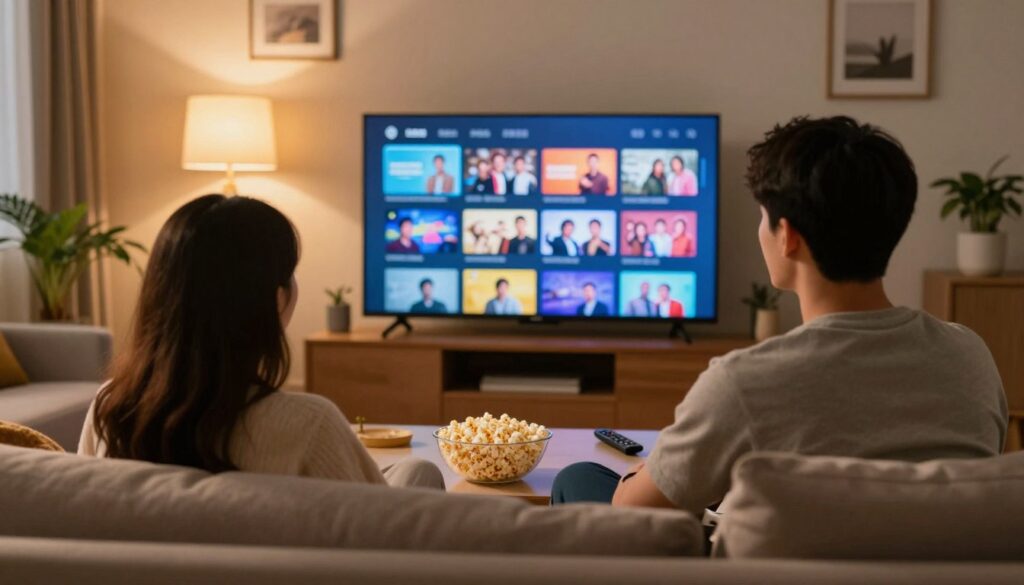
Follow a short, reliable routine so you can replay missed shows on any device.
Open the guide, scroll back in time, and press play
Open the electronic program guide (EPG), choose the channel, then move the timeline back to the hour the show aired.
Select the past program entry and press play. If the provider stored that item, playback starts from the program beginning.
Use search and filters to find shows faster
If the guide is crowded, use the app’s search and filters to jump to a title, genre, or date.
Search works well when you know the program name. Filters help when many channels list similar programs at once.
Resume across devices for a seamless viewing experience
Many services let you pause on one device and continue on another. When you stop, the app often saves your position so you can resume where you left off.
Test resume on your phone and TV to confirm the experience on both devices.
- What to look for: icons or labels that mark replay-enabled channels or past programs.
- Avoid common mistakes: don’t assume every channel stores programs, and remember replay windows expire after a set time.
| Step | What you should see | Quick action |
|---|---|---|
| EPG | Past program entry with replay icon | Select and play |
| Search | Title results and date filters | Filter by date or channel |
| Resume | Saved playback position | Tap resume on any device |
“A simple guide and a quick test are the best ways to know if the service fits your viewing needs.”
What to Look for in IPTV Services With Reliable Catch-Up
A reliable provider shows you which channels keep past broadcasts and how long they last.
Channel variety plus replay availability
Before you subscribe, confirm the actual channels that include replay, not just the headline count. Check which channel genres matter to you—news, sports, or entertainment—and verify their replay windows.
- Confirm channel coverage and which programs include replay.
- Verify replay windows for your must-watch channels.
- Look for free or risk-free trials to test availability yourself.
Streaming quality and smooth playback during prime time
Test service performance during evenings and big events. Prime time reveals real-world reliability and buffering behavior.
Smooth playback means fast start time, stable picture, responsive seeking, and synced audio/video. If these fail under load, the service won’t meet your needs.
Device compatibility and real-life use
Match supported devices to how you watch: smart TV in the living room and phone/tablet on the go. Make sure apps are stable on each device and that account limits fit your household.
Customer support standards
24/7 customer support is a trust signal. Fast help matters when login issues, EPG mismatches, or device pairing problems arise late at night.
“Try before you buy: use trials, test prime-time playback, and confirm clear pricing and simple plan terms.”
| What to check | Why it matters | Quick action |
|---|---|---|
| Replay windows | Determines how long programs stay available | Verify per channel |
| Prime-time stability | Shows real reliability under load | Test during evening hours |
| Devices & apps | Ensures smooth playback where you watch | Install and test on each device |
| Support & pricing | Helps when problems occur; avoids surprises | Confirm 24/7 support and clear subscription terms |
For a deeper buying guide to compare providers and plans, see our tips on best IPTV subscriptions and the broader trends shaping streaming.
Why GetMaxTV Stands Out for Catch-Up, Channels, and Value

Value matters when you want broad content, simple pricing, and reliable playback without juggling add-ons.
Scale of content and channels
19,000+ live channels and a 97,000+ VOD library mean you can switch between live viewing and on-demand movies and series without hunting for another app.
All sports and movies included in one plan
The plan bundles sports and movie packages so you don’t negotiate extra tiers to follow leagues or film releases. That makes tracking live sports and new movies easier on a single subscription.
Pricing, flexibility, and fast setup
At $6.95/month with no contract, the offer lowers commitment risk compared with traditional bundles. Activation is almost instant—about two minutes—so you can get access and start streaming quickly on supported devices.
Support and real-world quality
24/7 customer support helps when you test replay windows, troubleshoot buffering, or tweak quality settings. Fast help matters when you want dependable playback during peak times.
Learn more about plans and setup or see how the service fits retail and signage use in this technical overview: IPTV for retail and digital signage.
“A large channel lineup and an inclusive plan make it easier to watch the shows and sports you care about.”
Live Sports on Your Schedule: Replays, Highlights, and Time Zones
Missed the kickoff? Replays and timeline seeking put the game’s turning moments back on your schedule.
Rewatch games and key moments with stable playback controls
Sports are the clearest use case for provider replays. Games start while you commute, run long, or overlap across channels. That makes replays essential.
Use pause, rewind, and seek to go straight to the play you want. You can watch a full game from start to finish or jump to a scoring drive without relying on highlight clips.
How catch-up helps when events air late or overlap
Time zones matter. West Coast starts and international fixtures can air late at night. Replays let you watch the next morning and avoid spoilers.
Quality and smooth playback matter more for sports than many programs. Fast motion shows compression and buffering quickly, so a stable stream improves your viewing experience.
- Start from the beginning if you join late to keep context.
- Seek past commercials or breaks to save time.
- Check which sports channels store replays before a big event.
- Use replays to catch post-game news and analysis you missed.
“Replays let you control the game schedule—watch when it fits your life.”
| Scenario | Playback action | Why it helps |
|---|---|---|
| Missed start | Start from beginning | Preserves game flow and context |
| Overlapping games | Record or replay later | See both matchups without missing key moments |
| Late-night international | Watch next day | Avoid spoilers and enjoy full game quality |
Performance, Uptime, and Support: Getting a Cable-Like Experience Without the Cable
A truly reliable streaming plan behaves like cable when you need it most—fast channel changes and steady picture during big nights.
What “reliability” means in practice: channels load quickly, playback starts fast, and picture quality stays consistent during peak hours.
Think of reliability as fewer interruptions over time: less buffering, fewer crashes, and fewer guide mismatches that break your viewing flow.
How strong infrastructure reduces buffering
Good infrastructure scales capacity so many viewers can watch major events without slowdowns. A robust provider uses CDNs, load balancing, and capacity planning to keep performance steady.
Where to get help fast
Fast support matters. Look for services with 24/7 response, clear setup guides, and live help when a channel won’t load or a replay fails.
- Quick checks you can try: reboot the app or device, test your network speed, and use Ethernet for TV boxes when possible.
- If problems persist, contact customer support and report the channel and time—good teams trace issues fast.
“A cable-like experience is not about hardware fees; it is about predictable performance and helpful support when you need it.”
| Metric | What you see | Why it matters |
|---|---|---|
| Load time | Channels appear within seconds | Reduces frustration during channel surf |
| Playback stability | No frequent buffering | Maintains viewing quality |
| Support availability | Fast responses and clear fixes | Saves time when issues arise |
Want a quick setup walkthrough to test performance on your devices? Follow this setup guide to move from signup to streaming and see reliability for yourself.
Quick Start With GetMaxTV From Signup to Streaming
Start streaming in minutes after signup—no complex setup required.
Choose your subscription and set up on your devices
Pick a subscription plan and complete checkout. You’ll receive login credentials by email. Activation is instant—about two minutes if your device and network are ready.
Install the app on your preferred devices. Use phones, tablets, smart tvs, streaming sticks, or iptv boxes. Sign in and confirm basic playback on one screen first.
Start watching catch-up content right from the EPG
Open the electronic program guide, find a replay-enabled channel, scroll back, select a past program, and press play. That confirms you have access and that navigation and search work as expected.
“Instant activation and clear EPG navigation get you watching fast.”
Support and practical tips
Keep the app updated and set correct time on your tvs for accurate guide listings. Test a single channel before full use. If login, EPG, or playback fails, 24/7 support is available to help quickly.
| Step | What to expect | Quick tip |
|---|---|---|
| Signup | Instant activation (~2 min) | Have payment ready |
| Install | App on your devices | Update app before login |
| EPG test | Confirm replay playback | Scroll back and play one program |
| Need help | 24/7 support | Report channel and time |
If you want to explore pricing and the legal offer, you can review GetMaxTV here. For local channel access tips, see this guide: local channel access.
Conclusion
Provider-side replays put recent programs back in your control with a few taps.
In short: replay features reduce schedule friction by letting you replay missed shows and programs through the guide without DVR hardware. You now know that these replays are time-windowed and tied to specific channels, while VOD libraries offer movies and series any time.
Before you pick a streaming service, check replay windows, which channels support replay, and how the provider performs during prime-time. Rights and storage policies limit coverage, and peak demand can cause buffering unless the service has strong infrastructure and support.
Match the service to your devices, app navigation, and household needs. For sports and news, prioritize reliable playback controls, consistent quality, and 24/7 support.
If you want a legal IPTV subscription, check GetMaxTV’s current offer and review the full catch-up guide for details.
FAQ
What is catch-up TV and how does it differ from video on demand?
Catch-up TV lets you watch recently aired programs that you missed by replaying them from a channel’s recent broadcast window. Unlike standalone VOD libraries where titles are stored indefinitely, catch-up is tied to channel schedules and usually offers a limited replay window—commonly 24–72 hours, sometimes up to 7–14 days—so you can replay news, shows, or events without needing to buy or download the title.
Why should I use provider-side recording instead of a DVR box?
Provider-side recording stores replays in the cloud, so you don’t need extra hardware or local storage. That reduces setup complexity, lets you resume across devices, and keeps your viewing consistent whether you’re on a smart TV, streaming stick, phone, or computer. It also avoids the maintenance and space limits of physical DVRs.
How do replay windows work and how long can I expect replays to be available?
Replay windows vary by channel and rights agreements. Typical ranges in 2025 are 24–72 hours for many channels and up to 7–14 days for news or partnered content. Sports and premium events may have shorter or no replay availability due to licensing, so check the channel’s replay label in the EPG.
What devices support smooth catch-up streaming in the United States?
Most modern devices support cloud-based replay: Smart TVs from Samsung and LG, streaming sticks like Amazon Fire TV Stick, Chromecast with Google TV, and Apple TV, plus phones, tablets (Android and iOS), and computers (Windows and Mac). IPTV set-top boxes and compatible apps also work; navigation speed depends on the app and your device’s processor.
How do I find and play a missed show using the electronic program guide (EPG)?
Open the guide, scroll back to the time slot when the episode aired, and look for replay-enabled labels or a “Watch Replay” option. Select the listing and press play—controls let you pause, rewind, resume, and seek to key moments. You can also use search and filter tools to locate shows faster.
Will I experience buffering when watching replays during peak hours?
Peak-time demand can affect streaming reliability. A strong home internet connection and a provider with robust infrastructure reduce buffering. If you see frequent interruptions, try reducing stream quality, switching to a wired connection, or contacting customer support to check for regional load issues.
Why don’t some channels offer catch-up functionality?
Not all channels have catch-up due to content rights, storage limits, or network policies. Rights holders control replay permissions and durations, so certain live events or licensed shows may be excluded. Providers will usually label which channels support replay in the EPG.
Can I resume a replayed show on another device where I left off?
Yes—many modern services support resume across devices. Start playback on one device, pause, and then continue on another where you’re signed in. Seamless resuming depends on the provider’s session sync and whether the title is still within its replay window.
What should I check before subscribing to an IPTV service for reliable catch-up?
Verify channel variety and which channels include replay windows, confirm streaming quality and smooth playback during prime time, ensure device compatibility with your smart TVs or streaming sticks, and look for responsive customer support—ideally 24/7—for quick troubleshooting.
How are live sports handled with catch-up options?
Many sports broadcasts offer replays or highlights so you can rewatch games and key moments. Replay availability depends on league rights; some matches may be available for several days while premium events could be restricted. Playback controls let you jump to goals, plays, or condensed highlights.
What troubleshooting steps help if a replay won’t play or keeps stalling?
First, test your internet speed and switch to a wired connection if possible. Restart the app or device and clear the app cache. Lower stream quality in settings to reduce buffering. If problems persist, contact customer support with channel name, time of the program, and any error messages so they can investigate server-side or DRM issues.
How do electronic program guide (EPG) labels indicate replay-enabled channels?
EPG entries typically include icons or text labels like “Replay,” “Catch-Up,” or a rewind symbol to mark replay-enabled broadcasts. Some guides show a timeline bar that lets you scrub back to earlier segments. Use these visual cues to spot content you can replay without recording.
Are there limits to how many replays I can watch or how long they’re stored?
Limits depend on the provider and rights agreements. Some channels cap replay availability by time window, storage policies, or concurrent streams. Unlimited replays are uncommon; check the service’s terms for restrictions on viewing windows and simultaneous device usage.
How fast is activation and setup when you sign up for a modern IPTV plan?
Many providers offer quick activation—often within minutes—after signup and payment. Setup typically involves installing an app on your device, logging in, and letting the service populate the EPG and channel list so you can start watching replays right away.
Where can I get help if I have issues with channel coverage, playback, or subscriptions?
Use the provider’s customer support options—live chat, email, phone, or help center articles. Include device type, channel name, time of affected program, and screenshots or error codes to speed up diagnosis. Responsive support helps resolve rights, playback, and account issues faster.
The GetMaxTV Blog Team is a group of IPTV technology writers and cord-cutting researchers who have been reviewing streaming services since 2023. We publish independent device setup guides, troubleshooting articles, and honest service comparisons. Every tutorial on this blog is tested on real devices — Fire Stick 4K Max, Roku Ultra, Samsung Smart TV, Apple TV 4K, and Android phones. We verify every step before publishing and update our content quarterly.