

Can you really turn your TV or streaming box into a reliable recorder without extra gadgets?
This guide shows you a clear, easy way to record live shows and long games using a USB drive and a compatible hard drive.
You’ll learn the basic setup: a TV or streaming box with a USB port, a stable drive, and the right channel service. Small flash sticks often fail during long writes, so a true 2.5″ drive is the safer choice.
Some TVs ask to format the disk before they record. That can erase files, so we explain when to back up and when to let the TV prepare the disk.
We’ll also introduce a strong service option that pairs great content with instant activation and 24/7 help so your setup actually works for daily use.
Key Takeaways
- Choose a powered 2.5″ hard drive for steady recording and more storage.
- Confirm your TV or box supports recording to USB before you buy.
- Back up data if the TV prompts you to format the disk.
- Plan drive size by the length of matches, movies, or series you record.
- Consider a service that offers broad channels, VOD, instant activation, and round-the-clock support.
Get set up: the right HDD, USB connection, and settings for smooth recording
A stable recording starts with choosing the correct hard drive and a solid USB connection. Match a bus-powered 2.5-inch hard drive to a reliable USB port on your TV or streaming box to keep long writes steady.
What you need before you start
Have a smart TV or a streaming box with a working USB port, a quality cable, and access to your channel list so you can test right away.
Tip: test a short clip first to confirm the device recognizes the drive and shows record options in live view or the EPG.
Choosing the right hard drive
Favor a 2.5-inch hard drive for everyday recording. It is usually bus-powered and hides easily behind a wall-mounted TV.
Only pick a 3.5-inch model if you can plug in its power brick nearby. Check the TV or box USB power output; front-panel ports often deliver steadier power for continuous recording.
Data safety and formatting
If your TV asks to format the disk, stop and back up any important files first. Some sets apply a proprietary format that erases data and ties the drive to that device.
“Always back up before formatting — a single prompt can erase everything on the drive.”
| Brand of Drive | Power Need | Best Use |
|---|---|---|
| 2.5-inch hard drive | USB bus-powered | Daily recording, wall-mounted TVs |
| 3.5-inch hard drive | Requires external power | Large storage needs, stationary setups |
| USB flash stick | USB bus-powered | Short clips — often rejected for long records |
Walk through the on-screen setup steps so the TV indexes the drive and runs a write-speed check. If a small flash stick fails or drops frames, switch to a proper drive.
One easy way to avoid headaches is to pair your working hardware with a reliable channel service. Learn more about how to record streams on your system by visiting how to record streams. GetMaxTV’s broad device support and 24/7 help make repeating this setup across Firestick, Smart TV, Android, Windows, and Mac simple.
IPTV with external HDD: step-by-step setup and recording on your TV or box
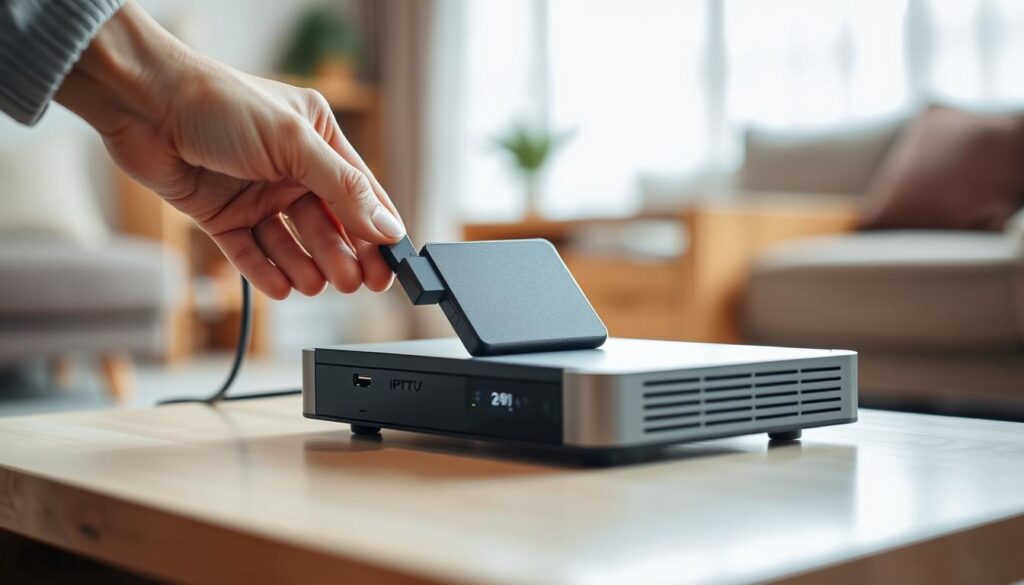
Start fast: plug a reliable drive into your TV or box USB and wait for the on-screen notice that the device sees the storage.
Connect and scan
Power on the TV, open the tuner or app input, and run a channel scan so program guides map correctly.
Then tune to the show you want and get ready to hit record.
Format and performance checks
If the set asks to run a quick format or performance test, allow it. This confirms the drive can sustain long recording sessions.
“Allowing the drive test helps avoid dropped frames and corrupted files.”
Hit the right buttons
Press the Record/Rec button on your remote, confirm the options shown, and set duration or a timer if needed.
Tip: use the on-screen options to choose where to save and to schedule by program name.
Troubleshooting recognition
If a thumb drive is not recognized or runs slow, swap to a 2.5-inch hard drive. That way long recordings complete reliably.
- Do not unplug while recording; use eject if available.
- Clear older files before big events to free storage.
- Repeat this step-by-step setup on each compatible device in your home for consistent results.
Ready in minutes: pair these steps with fast activation and guide support — see how it works on Roku here for instant channel access.
Device-specific limits you should know before you press Record
Before you press record, check how your box and service tie recordings to hardware. Some units use portal rules that change what you can save and how long it stays accessible.
Portal-tied boxes and service rules
Certain portal-based boxes, such as MAG units linked by MAC address, often block recording unless you buy a second line. Even then, most only allow you to record the same channel you are watching.
This means timer or background captures usually follow the single-channel rule. If you tune away, the scheduled capture can stop or fail.
Why unreliable workarounds fail
Quick-start hacks — like hitting record then backing to the home screen — have very low success rates. Reports put success at about one in eight attempts.
Avoid relying on these tricks. They lead to corrupt files, wasted time, and missing programs.
- Check the device manual for supported format and any encryption that locks files.
- Don’t overbuy storage; huge drives (for example 8TB) often exceed what the box can actually save.
- Use on-remote record buttons only when the menu path is proven reliable on your device.
If limits slow you down, consider PC-based capture or move to a more flexible app or service. For many users, a provider that offers broad device support and 24/7 help is the easiest way to stop wrestling with restrictions — learn more about protocols and options on this guide.
Alternative: record IPTV to an external HDD using your PC screen

If your box blocks saves, use your computer to capture the stream and save a clean file.
Quick workflow on Windows and Mac
Open your preferred screen recorder and set the capture area. Full screen is easiest. Or draw a crop around the player for a tight result.
Pick system audio so the program sound is recorded. Add mic or webcam only if you want commentary or picture-in-picture.
Save straight to your hard drive
Choose an output format such as MP4, AVI, or FLV. Set frame rate (30 or 60 fps for sports) and quality to match available storage.
Connect the drive by USB and set the save path to that disk. This keeps your internal SSD free and writes files directly to the target device.
Maximize value while you record
This option is universally compatible across devices and avoids flaky firmware. You get reliable files that are easy to edit later.
“A PC-based capture gives control and clean output even when set-top units limit recording.”
- Use hotkeys to start and stop cleanly and enable on-screen timers when possible.
- Create profiles: a low-bitrate profile for movies and a high-bitrate one for fast sports.
- Pair this workflow with a fast app that activates quickly and offers 24/7 support for setup questions.
| Step | What to pick | Why it matters |
|---|---|---|
| Capture area | Full screen or custom crop | Controls file size and framing |
| Audio | System audio ± mic/webcam | Keeps program sound and optional commentary |
| Format & rate | MP4 / 30–60 fps | Balances quality and storage |
| Destination | Connected hard drive via USB | Writes direct to removable storage |
Conclusion
Wrap up your setup by picking the simplest path that fits how you watch and save shows in this section.
You now have two clear options: record directly to a USB drive for easy playback, or use a PC screen capture for the most control and clean files. Choose a 2.5-inch bus-powered drive for everyday use, keep cables short, and let your TV run its quick performance test before long sessions.
If your box limits recording or ties saves to a portal, skip risky tricks and switch to the PC workflow for reliable results.
Get the most out of your setup, pair solid recording practice with GetMaxTV — the #1 IPTV solution for value. Enjoy 19,000+ live channels and 97,000+ VOD at $6.95/month, instant activation, and 24/7 support.
Ready to subscribe? Visit https://getmaxtv.com/ or try before you buy — message support on WhatsApp at +1 (613) 902-8620 for a free trial.
FAQ
What do you need before you start recording on your smart TV or set-top box?
You need a compatible smart TV or set-top box that has a USB port, a compatible hard drive or flash drive, an active channel subscription on your service, and the right app or portal access on the device. Make sure your box supports recording and has enough storage on the drive. Also check power needs—some 3.5-inch drives require an external power adapter or a powered USB hub.
How do you choose between a 2.5-inch drive and a 3.5-inch drive?
Choose a 2.5-inch drive if you want a compact, bus-powered option that plugs directly into USB ports. Pick a 3.5-inch drive when you need larger capacity and faster sustained performance, but remember it typically needs external power. Look at RPM and cache size for better performance and prefer USB 3.0 or higher for faster transfer speeds.
Why does my TV ask to format the drive and what should you do?
Many smart TVs and boxes require a specific file system or a dedicated partition for recording. When the device asks to format, it often needs to create a secure container. Back up any data first—formatting erases everything. If you want to avoid data loss, use a blank drive or move files to another device before allowing the format.
How do you connect and prepare the drive for recording?
Plug the drive into the device’s USB port, let the TV or box detect it, and follow on-screen prompts to set it as recording storage. Scan channels if needed and ensure the app or portal can access channel data. Run a quick performance check by recording a short clip to confirm stable write speeds and drive recognition.
What does it mean when a device tests the drive before recording?
Devices often run a quick read/write test to confirm the drive meets minimum speed requirements and is reliable. If the test fails, the device might refuse to record or will limit features. Use a different drive or connect through a powered hub if the initial test fails.
How do you start a recording using the remote or app?
Use the Record or Rec button on your remote, or open the recording option inside the app or portal. Set start/end times or timers if available. Some boxes let you schedule recordings directly from the program guide. Confirm the selected channel and destination drive before you press record.
Why might a USB flash drive fail to record while an HDD works fine?
Flash drives often have lower sustained write speeds and smaller caches, which can cause dropped frames or failed recordings. Hard drives typically provide steadier performance and higher capacity. If a flash drive fails, try a high-quality USB 3.0 stick or switch to a powered 2.5-inch HDD for better reliability.
What device-specific limits should you know before recording?
Some boxes and portals limit recording to a single channel at a time or block simultaneous playback while recording. Portal-tied boxes may enforce “second line” rules that restrict concurrent streams. Check your box’s manual and portal provider terms for recording rules and channel limits.
Are there common workarounds that often fail for recording limitations?
Yes. Short-lived tricks like quickly switching apps, trying to force background recording, or using unofficial firmware usually have low success and can break updates. Relying on vendor-supported features and using approved hardware gives far better results than hacks that often stop working.
How can you record content to your external drive using a PC instead of the TV or box?
On Windows or macOS, open a screen recording app (built-in tools or third-party), set the capture area to the player window, choose audio sources, and select MP4, AVI, or FLV for output. Point the save destination to your attached drive and start recording. This method gives flexible format and quality settings and works around device restrictions.
What formats and quality settings should you use when saving to a drive from your computer?
Use MP4 with H.264 for broad compatibility and a good balance of quality and file size. Pick 30–60 fps depending on source, and set a bitrate that matches the channel quality (higher for HD). Choose the external drive as the destination to keep recordings organized and to avoid filling internal storage.
How do you maximize storage and keep recordings safe?
Use drives with large capacity and reliable brands, schedule periodic file cleanup, and archive important recordings to another drive or cloud backup. Consider using multiple drives for rotation, and always eject drives safely before unplugging to avoid file corruption.
What support options are available if recording fails or drive isn’t recognized?
Start with device settings and the help section in your box’s portal or app. Manufacturer support pages for Samsung, LG, Roku, or your set-top box often include troubleshooting guides. If needed, contact your service provider or the drive maker for help. Many vendors also offer live chat or phone support for persistent issues.
The GetMaxTV Blog Team is a group of IPTV technology writers and cord-cutting researchers who have been reviewing streaming services since 2023. We publish independent device setup guides, troubleshooting articles, and honest service comparisons. Every tutorial on this blog is tested on real devices — Fire Stick 4K Max, Roku Ultra, Samsung Smart TV, Apple TV 4K, and Android phones. We verify every step before publishing and update our content quarterly.