
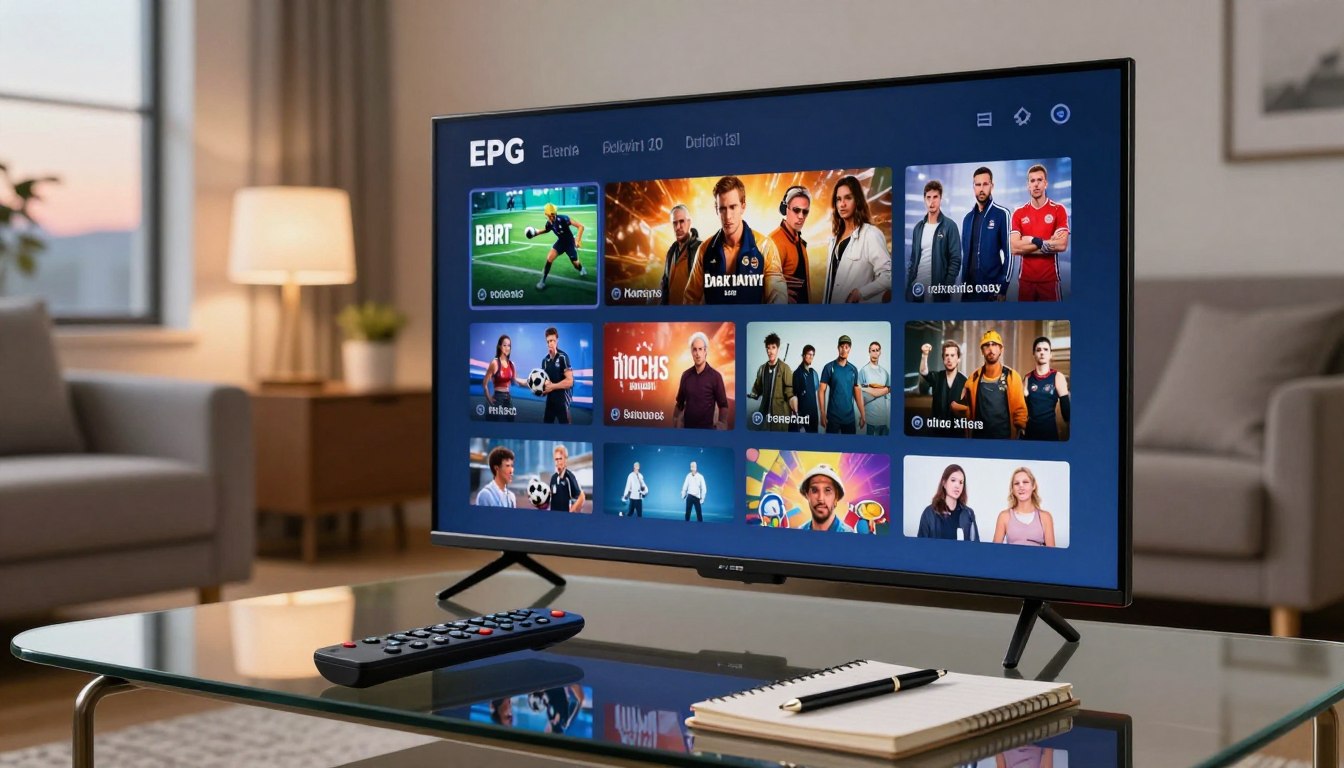
Wonder how one tool can turn channel overload into fast, confident choices?
You’ll learn how to open, set up, and use an electronic program guide so you spend less time hunting and more time watching. This short intro maps the steps: basics, setup, device actions, power-user navigation, customization, and troubleshooting.
Modern program listings put what’s on now, next, and later at your fingertips. They show schedules, descriptions, ratings, and may support reminders and time shift where available. You’ll also learn which features depend on the player or stream.
As a real-world example, see GetMaxTV for a snapshot of a large catalog with a strong guide: getmaxtv.com. By the end, you’ll read accurate now/next listings, correct time zone alignment, favorites, and faster search results for better viewing.
Key Takeaways
- Open and set up the program listing quickly.
- Follow a step-by-step flow from basics to advanced tips.
- Know what features depend on your player or stream.
- Use favorites and time settings to speed up viewing.
- See a real example of a large service that benefits from strong listings.
Why an electronic program guide makes your viewing experience easier
Instead of random channel hopping, a clear program list gets you to the show you want fast.
You open live TV and start flipping because you don’t know what’s on. That wastes time and leads to frustration.
A modern epg replaces guesswork with live schedules, thumbnails, and short descriptions. You can see what’s on now and next without loading every stream.
From channel flipping to smart browsing with live schedules and details
Thumbnails and runtimes help you spot a game start or a movie length quickly. Reminders and time shift stop you from missing live events.
What you can do faster with a modern guide today
- Search for titles instead of scrolling through dozens of channels.
- Save favorites to cut clutter and open a trusted list.
- Check descriptions to confirm a show is new or a repeat.
| Old habit | Modern list | Benefit |
|---|---|---|
| Flip through channels | See now/next with images | Decide in seconds |
| Click streams to check content | Read short descriptions | Less trial and error |
| Miss start times | Set reminders and use time shift | Never miss live events |
Good listings cut down “to be announced” gaps when providers update their information. Later sections show exact steps for common devices and troubleshooting, including a quick fix list you can follow now: quick fixes for your TV listings and a sample channel snapshot at channel example.
What an EPG is and how it works in today’s streaming services
Think of the on-screen schedule as a simple map that shows what’s playing now, next, and later across every channel.
An electronic program guide is the menu you open with a Guide/EPG button. It shows current broadcasts, upcoming slots, and later blocks on a single screen. Layouts usually use a grid or list: channels run one way and time blocks run the other.
What the listings contain matters for quick decisions. Typical epg data includes titles, episode names, short descriptions, genres, ratings, thumbnails, cast, and runtimes. That information helps you skip repeats and find the content you want.
“Providers publish structured feeds; apps ingest them and your player shows the listings.”
Behind the scenes, providers deliver metadata in formats like XML, CSV, JSON, and XMLTV. Middleware refreshes these feeds so schedules reflect real-time updates — think sports overruns or last-minute time changes.
- Structured feeds = consistent listings.
- Format compatibility = app reliability.
- Frequent updates = accurate now/next information.
Streaming services tend to refresh more often than traditional cable, making their program lists more dynamic. If you want to automatically update your playlist, the next section explains why that sync matters for cross-device viewing.
IPTV vs. cable and satellite: why the guide matters more on streaming
Streaming-first setups give you more choice, and that makes an organized program list essential.
Day-to-day differences: Traditional cable and satellite often lock you into one box and a fixed interface. That means limited search and little cross-device sync.
Streaming services act more like apps. They refresh listings more often and let you search fast across large catalogs.
Real-time updates and cross-device sync
With streaming, listings update automatically so you see sports overruns or schedule changes quickly. You can keep favorites and watchlists synced between your TV and phone if the service supports it.
Interactive features you’ll actually use
- Search: Find titles or genres in seconds instead of scrolling.
- Reminders: Set alerts for live sports or shows you don’t want to miss.
- Time shift: Pause, rewind, and resume when the stream and rights allow it.
“Not every player or channel supports every feature; availability varies by provider and device.”
Large lineups make filters and favorites more valuable. They turn a long list into a quick path to what you want.
getmaxtv epg guide: what to expect from the GetMaxTV program guide
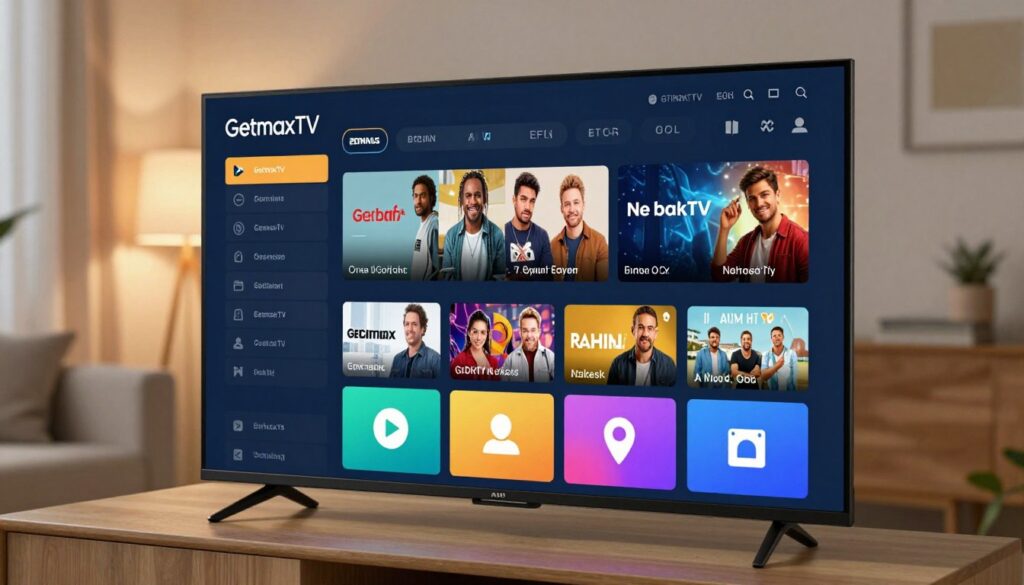
When a catalog grows into the tens of thousands, your on-screen list must work like a high-speed search engine.
Expect speed, searchability, and clear categories. With huge catalogs, simple scrolling fails. The program guide should let you jump to results, filter by genre, and save favorites fast.
You’ll use search, favorites, and filters far more than manual browsing when you have 19,000+ channels to sift through. Rely on quick title lookups, genre narrowing, and custom lists to cut clutter.
GetMaxTV snapshot and practical notes
The snapshot helps explain scale: 19,000+ live channels and 97,000+ VOD titles make discovery the key issue. Pricing is listed at $6.95/month with no contract and activation in about two minutes.
- No contract means you can test the service risk-free and cancel if the interface doesn’t fit your habits.
- 24/7 support is useful for time drift, missing listings, or channel mapping — real problems with big catalogs.
- Universal compatibility (Firestick, Smart TVs, Android, Windows, Mac) helps you use the same listings across devices.
| Aspect | What it means for you | Action |
|---|---|---|
| Large channel count | Scrolling is impractical | Use search and favorites |
| Extensive VOD | More content to explore | Filter by genre and save lists |
| 24/7 support | Faster fixes for listing issues | Contact support for mapping/time fixes |
Before you open the app, gather your playlist or portal info and the EPG source so setup goes smoothly. For retail or digital signage uses, see an example implementation here: IPTV for retail stores.
Before you start: what you need for a smooth EPG setup in the US
Before you touch settings, gather a few essentials so setup goes fast and error-free.
Quick checklist: verify a stable internet connection, confirm the playlist or portal details, pick the correct app for your device, and set the device time correctly.
Recommended internet speeds by quality
Plan bandwidth by stream quality. For SD, aim for ~5 Mbps per stream. For HD, allow 10–20 Mbps. For UHD/4K, target 20+ Mbps per stream.
If you have multiple viewers, add headroom — two HD streams need about 30–40 Mbps total to avoid drops during peak hours.
Supported device types and apps
Common compatible devices in the US include Fire TV/Firestick, Smart TVs, Android phones and tablets, Windows PCs, and Macs.
Choose an app or player that supports your playlist/portal method and the epg feed format your provider gives.
Network and setup best practices
- Use Ethernet for the most stable connection.
- If using Wi‑Fi, prefer 5 GHz and sit close to the router.
- Set the device time and time zone correctly to avoid schedule drift.
“Have your credentials, playlist/portal details, and the epg URL ready — setup often takes only a few minutes.”
| What to gather | Why it matters | Action |
|---|---|---|
| Subscription credentials | Needed to log into the app | Keep username/password handy |
| Playlist / portal details | Loads channels and streams | Copy exact server or playlist link |
| EPG URL/feed | Populates program listings | Paste into the app when prompted |
With these items ready, most users can add a playlist and link the epg in minutes and be watching without fuss.
Quick-start setup: load your channel list and EPG in minutes

The fastest way to accurate listings is a strict order: playlist first, data next.
Step 1 — Add the playlist. Paste your channel playlist URL into the app so the system knows which streams to match. Wait for the channels to appear in the list before moving on.
Step 2 — Add the epg source. After the playlist imports, paste the schedule/data URL. The app will begin to populate listings; this can take a minute while it indexes titles and times.
Set time and prevent schedule drift
Set your device time zone and enable daylight saving if available. Incorrect time causes shows to shift by an hour or more — a common symptom called “schedule drift.”
Refresh, verify, and fix
- Refresh or Sync: look for Update EPG/Refresh in the app menu. Use manual refresh after changes; set automatic intervals for quiet maintenance.
- Verify now/next: open the listing, pick a known channel, and confirm what’s playing matches your screen.
- Early fixes: restart the app or device, recheck URLs for typos, and clear cache if old data persists.
“Load the channel source first, then link the schedule — it prevents most mapping errors.”
When you’re done, this baseline setup works on most systems and apps. For a step-by-step walkthrough that matches many players, see a short EPG setup.
Device-by-device steps to open and use the program guide
Each device has its own fastest path to a working program list — here’s how to get there quickly.
Fire TV / Firestick
Install a compatible player app, then paste your playlist or portal details into its settings. Next, add the schedule source and force a refresh so listings populate.
Troubleshooting tip: if listings look stale, clear the app cache and refresh again to fetch the newest data set.
Smart TVs
Many native interfaces limit features. Use a compatible IPTV player app to unlock thumbnails, categories, and faster navigation on your big screen.
Android phones and tablets
Small screens work best with list views, filters, and quick search. Long-press items in many apps to open details or set reminders for a faster view.
Windows and Mac
Desktop players give you faster typing for search, easier bulk edits, and quicker channel mapping with keyboard shortcuts and a mouse.
“Load channels first, add the schedule second, then refresh — the workflow is the same across devices.”
Want a phone/tablet walkthrough or a player with an advanced interface? See an Android setup and app options here and a configuration-focused player overview here.
How to navigate the guide like a power user
Mastering a few shortcuts turns browsing into a quick, confident way to find shows you actually want to watch.
Grid vs. list: pick the layout that fits your screen
Grid view works best on large TVs. It shows time blocks side-by-side so you can scan start times at a glance.
List view fits phones and tablets. Vertical scrolling and text focus speed up searches on small screens.
Search playbook: title, genre, actor
Search by title when you know what you want. Search by genre when you’re exploring. Search by actor to follow favorites across programs.
Use filters to narrow results and save clicks. When you find a match, open the detail page before launching the stream.
Use program details as a decision shortcut
Check synopsis, cast, ratings, and runtime on the program page. These four items tell you if a show fits your mood and time.
For live events: search the event name, confirm start time, then set a reminder if available.
| Task | Best view | Why it helps |
|---|---|---|
| Scan start times | Grid | See many channels and times at once |
| Quick mobile browsing | List | Fast vertical scroll, easier taps |
| Find shows fast | Search + details | Title/actor filters + synopsis cut mistakes |
Recommendations can surface new favorites, but rely on filters and favorites for consistent results. For more setup tips, see this review of a popular player: Edge IPTV review.
Customize your guide for speed and control
A few quick custom lists turn a massive channel lineup into a short, familiar path.
Favorites and custom channel lists help you reduce clutter. Create lists like Sports, News, Kids, Movies, Local, and Weeknight Favorites. Put the channels you watch most into one view so you can start watching in seconds.
Different apps call these tools by different names (heart, star, groups). The result is the same: fewer taps and faster access for all users.
Genre filters and categories
Use genre filters to match how you watch. For example, filter to Sports on game night or Movies on weekends. Filters let you narrow a long list to a few relevant channels and save time when browsing.
Parental controls and rating locks
Control settings keep profiles safe. Enable rating locks and PIN protection to stop kids from opening mature channels. This is a simple safety step that gives parents peace of mind.
“Keep favorites tight, hide what you never watch, and clean lists regularly.”
| Feature | Why it helps | How to use it |
|---|---|---|
| Favorites / Custom list | Reduce scrolling, speed viewing | Create lists per household member |
| Genre filters | Find content quickly | Apply filters for occasions (sports, movies) |
| Parental locks | Protect young users | Set PINs and rating limits |
Periodically tidy your lists. Remove duplicates, hide channels you never use, and keep your favorites tight. A small cleanup keeps the system useful and fast for everyone.
Troubleshooting EPG issues: missing listings, wrong times, and mismatched channels
A calm, step-by-step check often fixes listing problems faster than guessing.
When listings don’t load: start by rechecking the playlist and schedule URLs you pasted into the app. A single typo or expired link is the most common cause. Confirm the feed format matches what the player accepts (XMLTV, JSON, XML, or CSV). Clear the app cache and force a refresh if channels appear but listings stay blank.
Fixing stale data
Force a manual refresh, then re-import the epg data. If results stay old, restart the device or box to clear stuck processes. Set a reasonable automatic refresh interval so the system pulls updates regularly.
Channel mapping and wrong time
Remember that a stream and its listing are separate. Mapping pairs the correct listing with the right channel entry. If schedules are shifted, check device and app time zone and daylight saving settings.
When to ask for help
If many channels remain mismatched or the feed is blank despite correct URLs, contact providers or support. Provider teams can validate feeds, fix mappings, and sync data quickly. For setup references and common fixes, see a short setup walkthrough and service comparison.
IPTV setup walkthrough and subscription notes can help when you escalate.
Conclusion
A clear on-screen schedule turns channel overload into a few fast choices you can trust.
A well-set electronic program list replaces guesswork with now/next/later views, quick search, useful details, reminders, and time shift when available. This makes your viewing experience faster and less frustrating.
Keep the “accuracy stack” in place: set the correct time zone/DST, use a compatible feed format, and refresh regularly to avoid stale listings. The same basics work across Firestick, Smart TVs, Android, Windows, and Mac.
Build favorites, use genre filters, open program detail panels, and rely on search before you commit time. If listings misalign, verify URLs, clear cache, re-import data, and apply channel mapping calmly.
For a large catalog example (19,000+ live channels, 97,000+ VOD, $6.95/month, no contract, 24/7 support), check a legal IPTV service option at https://getmaxtv.com.
FAQ
What is an electronic program guide and how does it improve your viewing experience?
An electronic program guide is an on-screen schedule that shows current and upcoming shows across channels. It replaces manual channel surfing by letting you browse times, read descriptions, set reminders, and jump to live or recorded content quickly. This saves time and helps you discover shows using search, filters, and thumbnails.
How do metadata feeds like XMLTV, JSON, or CSV power the program listings?
Metadata feeds deliver show titles, synopses, ratings, thumbnails, and timing. Apps ingest these XML, JSON, or CSV streams to populate listings in real time. When feeds update, your guide reflects schedule changes, ensuring the “now/next” info and descriptions stay accurate.
What’s the difference between using a guide with an IPTV service versus a cable or satellite box?
With IPTV, guides often sync across devices and update more frequently, offering richer features like search, catch-up, and VOD links. Cable/satellite guides can be slower to update and have limited cross-device access. Streaming guides also support time-shift and program reminders more flexibly.
How many channels and VOD titles should you expect from a large service list?
Large services can offer thousands of live channels and tens of thousands of VOD titles. That volume makes search, filters, and custom channel lists essential so you can find content fast without scrolling through an overwhelming lineup.
What internet speed do you need for SD, HD, and UHD streaming?
Aim for at least 3 Mbps for SD, 5–8 Mbps for HD, and 15–25 Mbps for 4K/UHD. These are minimums for a single stream; increase bandwidth if multiple devices will stream at once to avoid buffering and quality drops.
Which devices support modern program guides and apps?
Most major platforms support guide-enabled players: Amazon Fire TV/Firestick, Android TV, Samsung and LG smart TVs, Android phones and tablets, Windows and Mac desktops, and some Roku apps. Check the app store listing for specific feature support like grid view or reminders.
What information do you need before setting up a program guide?
Have your playlist or portal credentials ready, plus the EPG source URL if required. Also confirm your preferred time zone, account details, and the device you’ll use so the app can map channels and sync schedules correctly.
What is the quickest way to load channels and listings into a player?
Add your playlist first, then import the EPG source to populate program details. After importing, set the correct time zone and refresh the guide. This order prevents mismatches and ensures “now” shows the right program.
How do you prevent schedule drift and wrong show times?
Make sure the player’s time zone and daylight saving settings match your location. Regularly refresh or re-import the EPG feed and allow automatic updates so schedule shifts from metadata feeds don’t cause drift.
What are the best navigation tips to find shows faster?
Use grid view for a channel-by-time overview or list view to scan a single channel quickly. Search by title, genre, or actor to jump to relevant items. Use filters and favorites to narrow results and reduce browsing time.
How do you map channels so program listings match the correct streams?
Use the player’s channel mapping or channel ID tools to align each stream with its corresponding EPG entry. If a listing doesn’t match, edit the mapping manually or re-import a corrected playlist so the right program appears for each channel.
What should you do when listings don’t load or show stale data?
First check the EPG URL and format compatibility (XML, JSON, CSV). Clear the app cache, refresh the guide, or re-import the feed. If problems persist, restart the device and contact your provider to verify the feed status.
How can you customize the guide to match how you watch?
Create favorites and custom channel lists to trim clutter. Apply genre filters, set up parental controls and ratings locks, and choose a layout (grid or list) that fits your screen size and viewing habits for faster access.
When should you contact provider support for guide issues?
If listings remain incorrect after you refresh, or if channel metadata and stream mapping don’t align, contact your service provider. They can check the feed, update metadata, and help sync schedules across devices.
The GetMaxTV Blog Team is a group of IPTV technology writers and cord-cutting researchers who have been reviewing streaming services since 2023. We publish independent device setup guides, troubleshooting articles, and honest service comparisons. Every tutorial on this blog is tested on real devices — Fire Stick 4K Max, Roku Ultra, Samsung Smart TV, Apple TV 4K, and Android phones. We verify every step before publishing and update our content quarterly.