
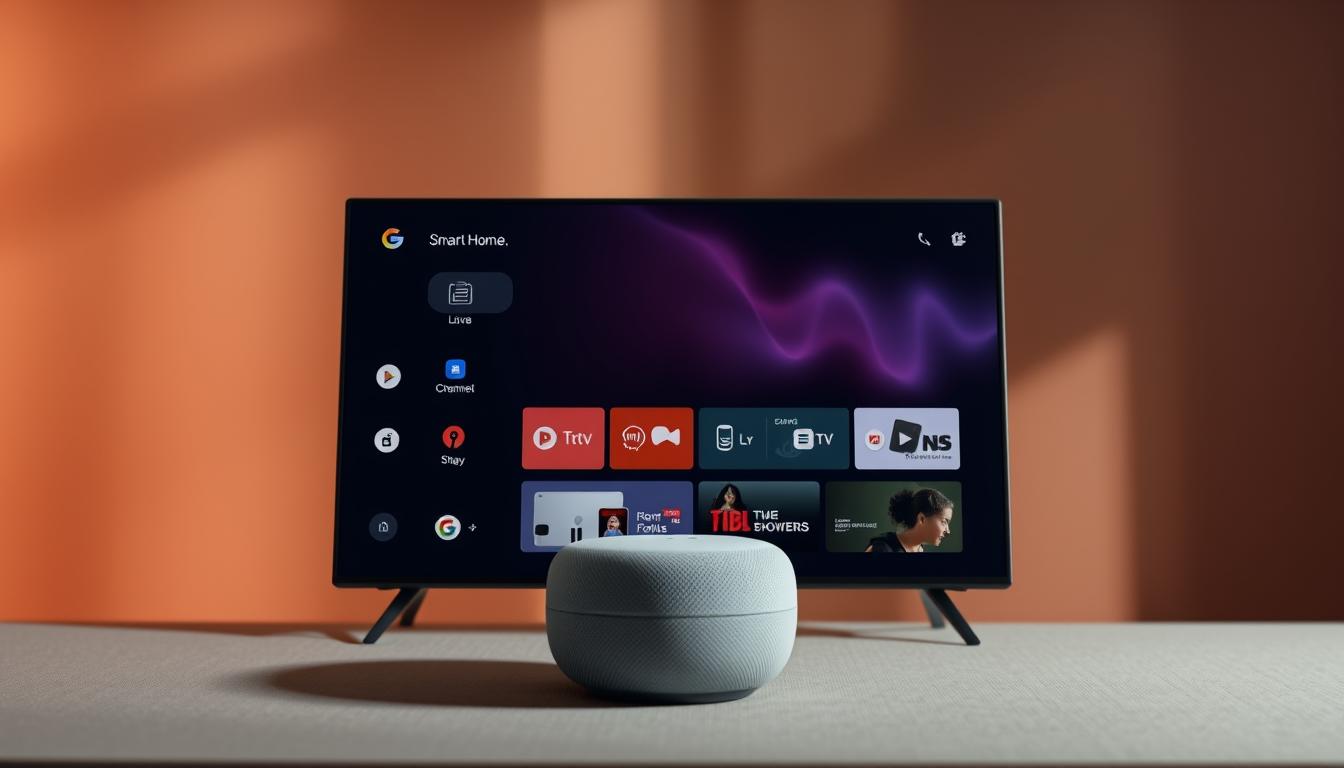
Want to ditch the remote and start your favorite show just by speaking? This guide shows how to pair your voice assistant to a powerful streaming setup so you can say a command and watch in seconds.
GetMaxTV gives you over 19,000 live channels and 97,000+ VOD titles for just $6.95/month. That includes sports and movies at no extra cost, instant activation, and universal compatibility across Firestick, Smart TV, Android, Mac, Windows, and Google TV.
You’ll learn which app to install, how your device handles playlists (M3U/M3U8 or Xtream Codes), and why the app manages playback while the provider supplies the content. The steps are practical and fast, from installing on Google TV to casting to Chromecast-enabled televisions.
This short guide focuses on quick setup, reliable voice commands, and simple fixes so your live channels and series load instantly. By the end, you’ll have a clear plan to start watching in under two minutes and know why this service is a top value for sports fans.
Key Takeaways
- You can control TV playback hands-free using voice commands and a compatible device.
- Install an IPTV player app, load an M3U or Xtream Codes API, and link casting for fast setup.
- GetMaxTV offers massive content—live channels, sports, series, and movies—for one low price.
- The app handles navigation and EPG while the provider supplies the actual content.
- Setup works across Firestick, Android TV, Google TV, and major Smart TV platforms.
- Simple voice phrases and a few quick fixes keep streaming smooth and responsive.
Why set up IPTV with Google Home now for a truly hands‑free TV experience
If you’re tired of juggling remotes and apps, voice control gives you a simpler way to watch. You can open an app, start a show, or switch channels in seconds. That ends the scrolling and typing that wastes your time.
Your current pain points with streaming and remote juggling
You lose remotes, jump between multiple apps, and waste minutes typing search terms. Buffering and overloaded services add to the frustration.
Voice actions reduce those steps. Say a command to start sports or pause a movie while you cook. Kids can find their shows faster, too.
The fast, affordable solution: 19,000+ live channels and 97,000+ VOD at just $6.95/month
GetMaxTV bundles massive content — live channels across the world and thousands of on‑demand titles — for one low subscription cost. There’s instant activation, no contract, and 24/7 support.
“Try a no‑obligation trial and see how voice control speeds up your day.”
- Apps support M3U/M3U8 and Xtream Codes API for channel lists and EPG.
- Cast to Chromecast-enabled devices, set favorites, and search fast.
- Get free guidance from support before you commit.
IPTV with Google Home: what it means, what you can control, and what you need
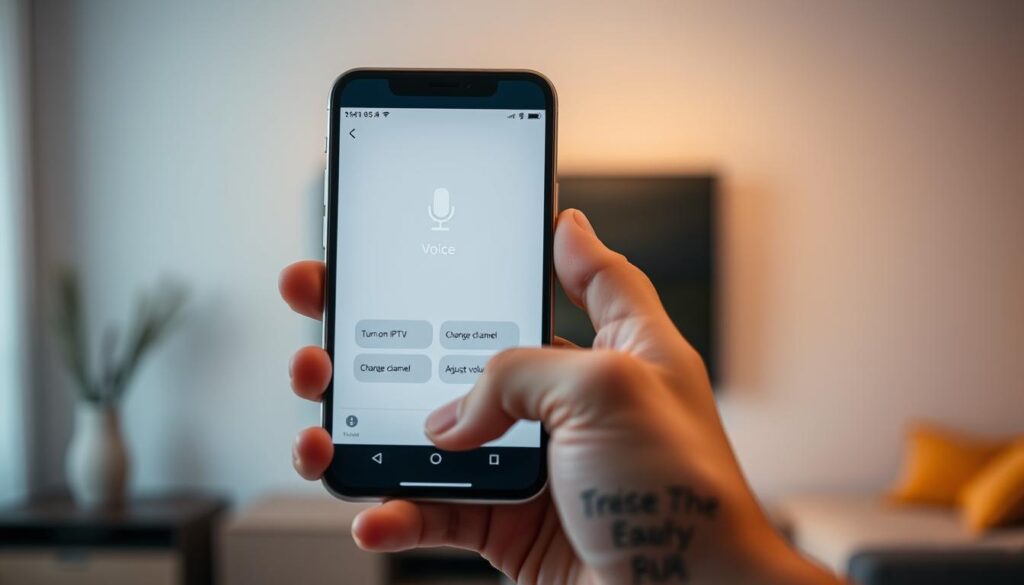
Voice control turns your living room into a simple command center—open an app, start a channel, or cast a show without touching a remote.
Voice actions you can use
You can ask your assistant to open an application, play or pause a stream, switch a channel by name, or cast from your phone to a Chromecast-enabled device.
Common phrases include “open [app name],” “play,” “pause,” “next,” and “cast to [device name].” Clear device names in the Google Home app improve accuracy.
Requirements checklist
- A Google TV or Chromecast device and a stable Wi‑Fi network for reliable streaming.
- A compatible player app that accepts M3U/M3U8 links or Xtream Codes API.
- An active subscription from a reliable iptv service like GetMaxTV, which supplies 19,000+ live channels and 97,000+ VOD titles.
- Find many players on google play, or use sideloading when needed for installation.
Player vs provider
Remember: the application is a player and does not include content. Your service supplies channels and the program guide via a playlist or API.
Most players add features like favorites, parental locks, fast search, and EPG so you can organize lists for kids and test a channel by voice.
Step‑by‑step: set up IPTV on Google TV, Chromecast, and Smart TVs for voice control
Ready to finish installation and start watching? Follow these concise routes for each platform so your subscription and program guide appear fast.
Google TV route
Open the google play store and search for a compatible player app. If an available app isn’t listed in your region, sideload the APK as an alternative installation option.
Chromecast route
On your phone, download an iptv app that supports casting, sign in, then tap Cast to your Chromecast-enabled device. Use voice to pause, play, or skip once casting starts.
Smart TV and Fire TV route
Install a supported player from the app store on Samsung, LG, VIDAA, or Fire TV (SmartOne IPTV is widely available). Add credentials and the service pulls your channels and VOD list.
Add your subscription and set the guide
In the application, add your subscription via an M3U/M3U8 playlist or Xtream Codes API. Enable the program guide, refresh the EPG, and mark favorites to speed voice-driven channel changes.
- Keep the player updated via the play store or vendor site for sideloaded versions.
- Adjust buffer and video renderer in options if streaming stutters.
Tip: GetMaxTV activation is instant—about two minutes—so once installation finishes you can start live sports and movies immediately.
Why GetMaxTV is the best value pick for Google Home voice‑controlled IPTV

For a clutter‑free setup that still delivers every major sport and film, GetMaxTV stands out. You get huge content depth at one low price, so your family can watch live channels, sports, and movies without juggling multiple subscriptions.
Massive content — sports and movies included
More than 19,000 channels and 97,000+ VOD mean your favorite sports, movies, and series are ready on demand. There are no surprise add‑ons for premium sports or recent releases.
Universal compatibility across devices
GetMaxTV works on Firestick, Smart TV brands, Android and android google devices, Mac, Windows, and Google TV. That makes it easy to use the same service on every device in your home.
“Instant activation in two minutes and 24/7 support make sign-up risk‑free.”
- Only $6.95/month for all sports and movies — no contract.
- Pairs with popular applications like SmartOne IPTV on Samsung and LG; paste credentials once and your list populates.
- Fast zapping, favorites, and parental controls when you combine a solid provider and a reliable player.
Ready to try it? Use this smart set-top option to sign up and start streaming tonight.
Troubleshooting and optimization for seamless voice‑controlled streaming
When playback hiccups or voice commands lag, a quick checklist gets you back to watching fast.
Network basics
Place your router centrally and reduce interference from other electronics. For stable 1080p video, use Ethernet or a mesh system if several devices stream at once.
If your ISP slows traffic at peak times, try a vpn. Pick a nearby server and test a few channels to confirm latency and quality.
App and playlist fixes
Update your player through the google play store or the play store on your device to the latest version. If you sideloaded, download the newest version from the developer and reinstall.
When channels won’t open, refresh the list or reimport your Xtream Codes API. Clearing cache/data forces a new program guide pull and often restores content.
Voice reliability
Make sure devices have unique, memorable names in the voice app. Use specific channel names and set language preferences so commands launch the right stream.
- Switch decoders or adjust buffer in options for single‑channel stutter.
- Toggle renderer or deinterlacing to fix A/V sync, then test live sports.
“If troubleshooting isn’t your thing, GetMaxTV support is available 24/7 — activation takes about two minutes and there’s no contract.”
Conclusion
Wrapping up, you now have a simple path to turn your existing devices into a hands-free streaming hub.
You learned how a player uses a playlist or Xtream Codes to add channels while your provider supplies the content. Keep the application updated and your list refreshed for reliable playback and fast zapping.
GetMaxTV is the best value: 19,000+ live channels and 97,000+ VOD for $6.95/month, all movies and sports included, no contract, instant activation in about two minutes, and 24/7 support.
Ready to start? Subscribe now at getmaxtv.com or get a no‑obligation, get free trial via WhatsApp: +1 (613) 902-8620. For casting and device tips, see this Chromecast guide.
FAQ
What is IPTV Google Home Integration: Voice Control 2025?
It’s a setup that lets you use voice commands to control streaming apps and devices on Google TV, Chromecast, and compatible smart TVs. You can ask to play shows, pause, switch channels, or cast from a phone to your TV for a hands‑free viewing experience.
Why should you set up this system now for a truly hands‑free TV experience?
You’ll stop juggling remotes and menus. With voice control you move quickly between live channels, on‑demand series, and apps. Many services offer huge libraries—thousands of live channels and tens of thousands of VOD titles—at low monthly rates, so setup gives you convenience and value.
What voice actions can you use once everything is set up?
Typical commands include “play,” “pause,” “resume,” “open [app name],” “cast to [device],” and “switch to [channel name].” You can also ask for specific shows, start recordings if your app supports it, or navigate program guides and favorites using voice.
What do you need before trying voice control on your TV?
Make sure you have a Google TV or Chromecast with Google TV, a compatible streaming app from the Google Play Store (or a sideloaded player), an active subscription that provides channel playlists, and a stable Wi‑Fi network.
What’s the difference between a player app and a content provider?
A player app plays video and manages playlists, but it doesn’t supply channels. Your subscription or service supplies M3U/M3U8 playlists or an API like Xtream Codes, which the player uses to access live channels and on‑demand content.
How do you set up apps on Google TV?
Go to the Google Play Store on your Google TV, search for a compatible player, install the latest version, then add your playlist or API credentials in the app. If an app isn’t available, you can sideload the APK carefully using a trusted source.
How can you cast from Android or iOS to a Chromecast device?
Open a compatible app on your phone, tap the cast icon, select the Chromecast device on your network, then choose the channel or VOD to play. Voice control works if your Chromecast is linked to your Google account and device names are clear.
Are Samsung, LG, VIDAA, and Fire TV supported?
Yes, many players are available in Samsung’s and LG’s app stores, VIDAA, and Amazon’s Appstore for Fire TV. Check the store for a compatible IPTV player; if unavailable, use casting from a mobile device or install alternative apps where allowed.
How do you add a subscription so channels and VOD appear in the player?
In the player app go to the account or settings area and add your M3U/M3U8 playlist or Xtream Codes API credentials. Once validated, the app loads live channels, VOD libraries, and program guide data if provided by the service.
How do you set up the program guide and favorites?
Many players support EPG files or EPG auto‑mapping from the provider. Import the EPG, map channels to guide entries, then mark favorites inside the app for quick voice access and fast channel search.
Why is GetMaxTV recommended for voice‑controlled setups?
It offers broad device compatibility—Firestick, Android TV, Windows, macOS, and more—plus large channel and movie libraries that simplify voice searches. The service bundles sports and movies without per‑item fees, making it a convenient value option.
What network steps help ensure smooth streaming and voice response?
Improve Wi‑Fi by placing your router centrally, use 5 GHz where possible, and minimize interference. For remote locations or geo‑restricted content, consider a reliable VPN configured on your router or device to protect speed and access.
What should you do when an app won’t load channels or crashes?
Update the app to the latest version from the Play Store or app store, clear the app cache, re‑enter your playlist or API details, and restart the device. If problems persist, test the playlist on a different player to isolate the issue.
How can you improve voice reliability if commands aren’t recognized?
Use specific device and channel names, set your Google language and voice match correctly, and name your TV in the Google Home app. Avoid using similar names for devices to reduce confusion.
Is it legal and safe to use these services?
You should use reputable, licensed providers and read terms of service. Avoid unknown sources that promise free access to premium channels. For privacy and security, keep apps updated and consider a VPN if you need extra protection.
The GetMaxTV Blog Team is a group of IPTV technology writers and cord-cutting researchers who have been reviewing streaming services since 2023. We publish independent device setup guides, troubleshooting articles, and honest service comparisons. Every tutorial on this blog is tested on real devices — Fire Stick 4K Max, Roku Ultra, Samsung Smart TV, Apple TV 4K, and Android phones. We verify every step before publishing and update our content quarterly.
8MBETS is the top choice for online betting in Bangladesh.
Enjoy exclusive bonuses, live betting, and casino games.
Claim bonuses and start betting today!