
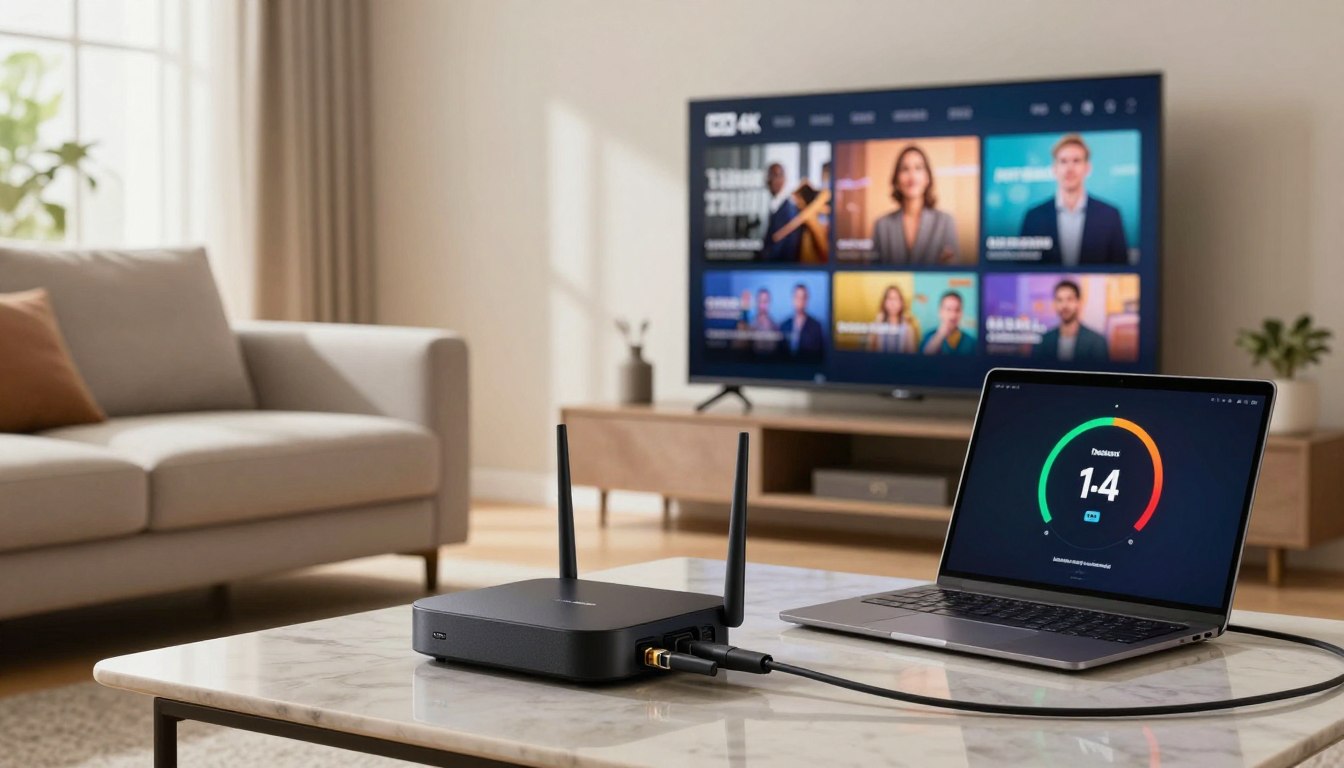
Have you ever wondered what it really takes to watch smooth, ultra-clear TV over your home internet without constant buffering?
In this guide you’ll find the real-world steps to get a reliable viewing experience. I’ll explain how network speed, the right devices, and simple app settings work together to deliver fast channel changes, steady live sports, and crisp UHD picture.
Think of “smooth” as low lag, quick channel switching, and nearly no stutter. I’ll also cover legality in plain terms: the technology is legal, but choose providers who hold proper licenses. You can review brands like GetMaxTV later when you compare legal, premium options.
By the end you’ll have clear Mbps targets per stream, a checklist for your router and player app, and realistic expectations for US homes during evening peak times. This is a step-by-step plan so you can test and improve your setup with confidence.
Key Takeaways
- Identify the right internet speed and device to avoid buffering.
- Focus on three pillars: network, hardware, and app settings.
- Expect peak-time slowdowns in many US neighborhoods.
- Choose licensed providers for a legal, reliable service.
- Use the checklists and Mbps targets to validate your setup.
What “4K IPTV” Means and Why Requirements Matter in Today’s Streaming Setup
Getting clear, consistent picture on a large TV starts with understanding the delivery method. In plain terms, protocol television sends live channels and on-demand content over your internet instead of through a cable box or satellite dish.
IPTV explained in simple words
Think of it as video files routed like web pages. That means your Wi‑Fi, router paths, and local congestion can change how playback behaves. A weak device or noisy wireless will show problems fast.
Why higher resolution raises the bar
Higher resolution needs more data per second and cleaner decoding. Bitrate and compression decide perceived quality, so two “4K” channels may look different based on source and encoder choices.
“The technology is legal; the trust question is whether a provider holds proper licensing.”
Choose an iptv service that is iptv legal and licensed. That protects you and improves chances of stable viewing, especially for live sports where buffering is most obvious.
- Protocol television = channels over internet, not cable/satellite.
- Higher-resolution content demands steady throughput and decent hardware.
- Next sections show Mbps targets, wired vs Wi‑Fi, device classes, and app tweaks to reduce stutter.
Internet Speed Requirements for 4K IPTV That Actually Prevent Buffering
Real-world streaming depends on steady throughput, not a single fast test. Aim for a sustained 25–30 Mbps per UHD stream so the player has headroom for spikes and codec overhead.
What “25–30 Mbps” means
That number is a continuous download rate. A one-off speed test peak can lie; you want a consistent result when you watch live TV, especially in evening hours.
When to aim for 50+ Mbps
If your household uses multiple devices, pick 50+ Mbps. That handles one UHD stream plus extra HD streams, phones, updates, and smart home traffic without micropauses.
Speed versus stability
Stability beats headline speed. Jitter, packet loss, or heavy Wi‑Fi interference will cause buffering even if your Mbps looks high. Test at showtime on the streaming device to see real performance.
Ethernet vs Wi‑Fi and US home tips
Use Ethernet for your main TV when possible — it lowers latency and cuts interference. For Wi‑Fi, place the router centrally, prefer 5GHz for streaming, avoid crowded channels, and consider a mesh system for multi‑story homes.
- Quick Mbps budgeting: Add simultaneous streams (one UHD = 25–30 Mbps, each HD ≈ 5–8 Mbps) then add 20–30% margin for other traffic.
- Advanced tips: Run tests during evening peak, test from the streaming device, and retest after moving the router.
For deeper bandwidth guidance and real-world figures, see a technical breakdown of bandwidth needs and trends in modern streaming at bandwidth recommendations and broader market shifts at streaming trends.
4k iptv subscription requirements checklist for your home network and hardware

Before you buy a plan, run a quick home checklist to confirm your network can actually handle UHD streams. Use this one-glance list to test and fix weak points so your living room plays without pauses.
Minimum internet connection baseline
HD: Aim for 10–15 Mbps per stream for single-device HD viewing.
Full HD: Give extra headroom—15–20 Mbps—to avoid stalls during busy hours.
4K: Plan for 25–30 Mbps per stream and a stable connection during peak evening use.
Router and modem considerations for sustained UHD streaming
Older cable modems or basic router CPUs can bottleneck multiple devices. Choose a modern dual‑band or tri‑band router with strong 5GHz radios and enough processing power for simultaneous streams.
Wired Ethernet to your main player reduces interference. If you must use Wi‑Fi, prioritize 5GHz and consider mesh for multi‑story homes.
ISP throttling and when a VPN might help
Some providers reduce video traffic during peak times, which can look like a faulty service. Test at showtime from your TV to confirm.
A VPN can sometimes improve routing stability or bypass throttling, but it’s not guaranteed—VPNs may lower speeds if the server is slow. Use a reputable VPN and test before relying on it.
- Quick check: Test real playback at peak time from your streaming device.
- Match plan to use: Pick a plan that covers your total household bandwidth needs.
- Ask providers: Confirm customer support and service uptime before purchase.
Device Requirements: What You Need to Stream 4K IPTV Smoothly
Your playback quality often depends more on the player in your living room than on raw internet numbers. A capable device moves data, decodes video, and keeps menus responsive. If the hardware is weak, you’ll see slow channel changes, app crashes, or choppy viewing even with good Mbps.
Smart TVs vs dedicated streaming devices
Smart TVs vary widely. Some have slow CPUs, limited memory, and few OS updates. That makes apps age faster and be less stable.
Dedicated streamers (Fire TV / Android TV-style) often offer better Wi‑Fi, regular updates, and stronger decoding. They give smoother navigation and longer practical support.
Recommended device classes for smooth 4K playback
Look for devices that support 4K + HDR, modern Wi‑Fi (5GHz/ax or ac), Ethernet, and at least 2–3 GB RAM. Those features reduce freezes and lower the chance of overheating during long sessions.
Storage and processing headroom
Headroom means extra CPU and RAM so the app can load large channel lists and the EPG quickly. If a device is barely adequate, video may play but the app will lag when you browse.
Pro tip: Even the best premium iptv subscription will feel sluggish on budget hardware—investing in a solid player is part of the premium experience.
| Device class | Pros | Cons | Recommended specs |
|---|---|---|---|
| Built-in Smart TV app | Simple setup, fewer boxes | Varied performance, fewer updates | Recent OS, 2+ GB RAM, Ethernet preferred |
| Fire TV / Android TV-style | Reliable decoding, frequent updates | Extra device to buy | 4K+HDR, 2–3 GB RAM, Wi‑Fi ac/ax, Ethernet |
| Mini PC / NUC | High power, multitasking | Higher cost, complex setup | Quad‑core CPU, 4+ GB RAM, SSD, GigE |
For practical setup steps and device tips, check a deeper guide on compatible players and hardware choices like this device overview and setup article at 4K device guide or the Apple TV-focused setup instructions at Apple TV configuration.
App and Player Setup Requirements for a Premium IPTV Experience
A correctly configured player turns raw streams into a simple, TV-like experience.
Subscription vs player app: Your plan provides the streams, while the app is the interface that plays them. You need both—one supplies content, the other decodes and shows it.
Popular player types
Smarters-style apps are simple and fast to set up. TiviMate-style apps give advanced lists, custom layouts, and better channel management.
Portal login basics
Install the app, choose login type, then enter the portal URL, username, and password. Wait for the playlist and VOD to load; larger channel lists take longer on low-power devices.
If streams stutter or audio drifts, try an external player like VLC or MX Player as the playback engine. That can fix format or codec mismatches.
Why EPG matters
EPG makes thousands of channels usable. It shows what’s on now, lets you search, add favorites, and returns recent channels quickly. Set EPG refresh behavior so listings stay current.
Quick step: Install app → enter portal → wait for playlist → enable EPG → mark favorites.
For tips on accessing local channels, see how to access local channels.
Settings That Improve 4K Picture Quality Without Causing Constant Buffering
Small changes in your player and TV settings can lift picture quality without adding buffering. Start with realistic tweaks that match your TV and device. Avoid flipping every option to max; that can backfire.
Video output and display
Set your device output to match the TV native resolution and turn HDR on only if the TV supports it. For sports, choose higher frame rates when available. For movies, prioritize color depth over frame doubling.
Buffer and player settings
Increase the player buffer slightly to smooth live playback. Don’t set it too large—big buffers add delay for live sports.
Try external players like VLC or MX Player if your built-in app struggles. They often handle tricky codecs better.
Audio and sync
Pick the most stable audio output on your device (TV passthrough or device PCM). If commentary lags, use the app’s audio delay control.
For step-by-step fixes, see audio sync fixes on our support page: audio sync fixes.
Usability tweaks
Create favorites, rename groups, and hide unused categories to reach channels faster. Use the recent list for quick channel switching.
Quick tips: Keep your app updated and change one setting at a time so you can measure the effect.
Multiple Devices, Household Streaming, and Customer Support Expectations
Families need clear rules for device use so everyone can watch without surprise interruptions. Check the fine print: installing an app on ten devices is different from allowing ten simultaneous streams.
Multiple devices vs simultaneous streams
Confirm how many streams your plan allows at the same time. Some providers let multiple devices be registered but restrict concurrent playback to two or three streams.
Tip: Ask if upgrades are available for families so you can add connections if needed.
Realistic household scenarios
One 4K living-room stream typically needs ~25–30 Mbps of steady bandwidth. At the same time you might run an HD show in another room (~5–8 Mbps) and phones in the background.
Plan your total Mbps: add simultaneous streams and leave a 20–30% margin for other web use. That prevents slowdowns during evening peak hours.
Customer support signals of a premium service
Good providers show three things: clear setup guides, responsive support channels, and honest updates about outages or maintenance.
- Setup help: step-by-step login and EPG guidance, or live chat to get you online fast.
- Responsiveness: quick replies for login or playlist errors, with follow-up until fixed.
- Transparency: public uptime notices and honest timelines for fixes.
Quick check: use a short trial during prime time to validate real performance before committing.
For help choosing a family-friendly plan, see this guide on picking the best plan for a household: how to choose the best plan for a.
Conclusion
Wrap up your setup with a short checklist to turn good internet into great TV.
The big three that decide your viewing: stable internet (not just a single speed test), a capable streaming device or TV, and smart player/app settings. Plan around ~25–30 Mbps per 4K stream and add headroom if multiple devices share the network.
Choose licensed providers so your setup is both smooth and iptv legal. For further reading, see the ultimate guide and a practical VOD access guide at VOD on GetMaxTV.
Next steps: confirm allowed streams, test wired vs Wi‑Fi, update your app, and validate EPG and channel stability during peak hours. If you want a legal IPTV subscription and a better entertainment experience starting today, check GetMaxTV’s offer.
FAQ
What does “4K IPTV” mean and why do requirements matter?
4K IPTV means television delivered over internet protocol at ultra‑high definition. You need higher bandwidth, stable throughput, and a capable decoding device to avoid buffering, maintain HDR and accurate colors, and ensure smooth live events.
How much internet speed do I really need for a single 4K stream?
Plan for about 25–30 Mbps of sustained throughput per 4K stream. That accounts for peak bits-per-second spikes, HDR metadata, and audio overhead so playback stays smooth during most content.
When should I aim for 50 Mbps or more?
Aim for 50+ Mbps when multiple devices stream concurrently, when other household traffic is active, or during peak ISP congestion. That headroom reduces chances of stutter and keeps menus responsive.
Is raw speed more important than stability?
Stability matters more. A consistent 25 Mbps is better than a bursty 100 Mbps that drops often. Look at jitter, packet loss, and sustained throughput, not just a single speed test number.
Should I use Ethernet or Wi‑Fi for the best experience?
Use wired Ethernet for the most reliable connection. If you must use Wi‑Fi, prefer 5 GHz, place the router centrally, and consider a mesh system to reduce interference and maintain throughput.
What are minimum baselines for HD, Full HD, and 4K?
Minimum steady rates are roughly 5–8 Mbps for HD, 10–15 Mbps for Full HD, and 25–30 Mbps for 4K. Add headroom for concurrent devices and network overhead to avoid playback issues.
How can my router or modem affect UHD streaming?
Older routers or slow modem‑router combos can bottleneck throughput and increase latency. Use a modern dual‑band or tri‑band router, enable QoS if helpful, and ensure firmware is up to date.
Can ISP throttling cause problems and will a VPN fix it?
Throttling can reduce streaming quality during peak hours. A reputable VPN may hide traffic patterns and bypass throttling, but it can add latency. Test with and without a VPN and choose a fast provider if needed.
Do smart TVs stream 4K as well as dedicated devices?
Some smart TVs handle 4K well, but dedicated streamers like recent Fire TV, Android TV boxes, or Nvidia Shield often deliver better app compatibility, smoother updates, and stronger decoders for HDR and HEVC content.
Which streaming devices are recommended for UHD playback?
Look for recent Fire TV Stick 4K Max, Chromecast with Google TV, Android TV boxes with HEVC support, or Nvidia Shield. Choose devices that support HDR10/Dolby Vision, hardware decoding, and robust memory.
How much storage and processing headroom should my device have?
Aim for devices with at least 2–3 GB of RAM and some free storage for app and cache files. That avoids laggy menus, app crashes, and long startup times when switching channels.
What’s the difference between a service subscription and the player app?
The service provides the content and playlist; the player app renders video and offers UI features. You may need the right player (or portal) to load menus, EPG, and user credentials correctly.
Which player apps improve compatibility?
Popular choices include TiviMate, IPTV Smarters‑style apps, VLC, and native Android/Fire TV players. Some third‑party apps offer better EPG integration, channel management, and buffering controls.
What login details do I need to set up a portal or playlist?
You typically need a portal URL or M3U playlist link plus a username and password. Enter them into your chosen player app, then load the channel list and EPG. Keep credentials secure.
When should I use external players like VLC or MX Player?
Use external players when the built‑in decoder lacks format support or you want advanced buffering and subtitle control. They can improve compatibility for specific codecs or streams.
Why is a reliable EPG important?
A good electronic program guide makes navigation faster, enables scheduling, and improves live TV usability. Without it, finding shows and managing favorites becomes cumbersome.
What player and display settings improve picture without constant buffering?
Match output resolution and frame rate to your TV, enable hardware decoding, set moderate player buffer sizes, and disable unnecessary post‑processing features that add load. These cuts reduce stutter while keeping quality high.
How do buffer settings affect live channel stutter?
Larger buffers smooth out short network hiccups but add latency. For live sports, use a small-to-moderate buffer to minimize delay while keeping interruptions manageable.
How can I avoid audio delay on live events?
Sync audio via player delay settings or audio passthrough options, ensure your receiver’s firmware is current, and prefer stereo or simple formats if your bitstream causes decoder lag.
Any UI tips for large channel lists?
Use favorites, custom categories, and search features in your player app. That speeds up navigation and reduces time spent scanning long lineups.
How many simultaneous streams does a premium plan typically allow?
Premium plans vary; common limits are 3–6 concurrent streams. Confirm with the provider and choose a plan that matches household usage to avoid conflicts.
Can you run 4K in one room and HD elsewhere in the house?
Yes. With sufficient total bandwidth and proper plan permissions, you can stream 4K to one device and HD to others. Ensure each stream has needed throughput and that your router handles multiple clients.
What customer support features indicate a premium service?
Look for setup help, quick ticket response, uptime transparency, clear channel lists, and active maintenance notices. Live chat or phone support and firmware/app configuration guides are strong signs of a quality provider.
Are there legal concerns I should know about?
Ensure the service you use has proper licensing and follows local copyright laws. Use reputable providers and avoid services that make unverifiable claims about channels or guaranteed legality.
What advanced tips can improve overall viewing?
Use Ethernet where possible, enable QoS for streaming devices, keep apps and firmware updated, test VPNs carefully, and monitor network usage during peak hours to tweak settings and avoid congestion.
The GetMaxTV Blog Team is a group of IPTV technology writers and cord-cutting researchers who have been reviewing streaming services since 2023. We publish independent device setup guides, troubleshooting articles, and honest service comparisons. Every tutorial on this blog is tested on real devices — Fire Stick 4K Max, Roku Ultra, Samsung Smart TV, Apple TV 4K, and Android phones. We verify every step before publishing and update our content quarterly.