
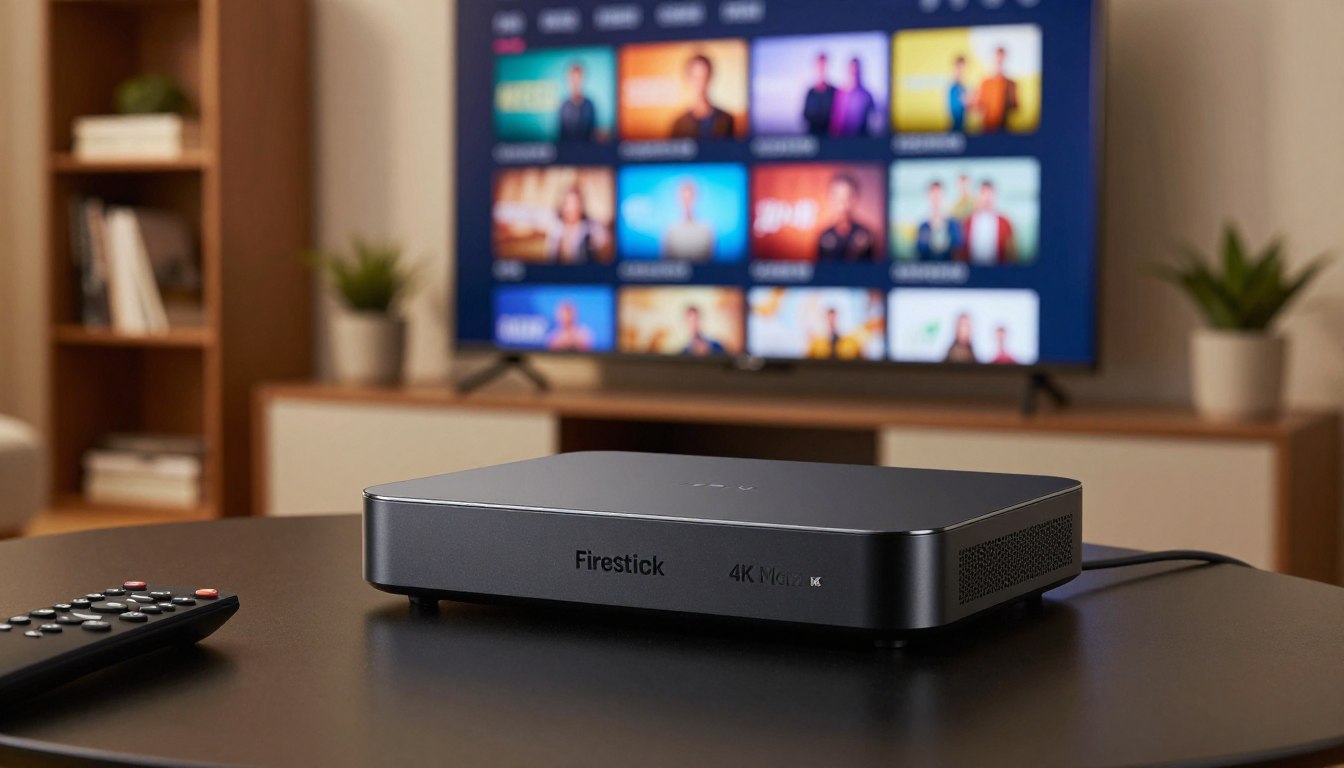
Curious whether upgrading will truly change how you watch live TV and on‑demand content? You’re deciding if a newer player improves playback, navigation, and picture quality compared with older sticks or built‑in smart TV apps.
In this guide, we’ll define IPTV as live TV and VOD delivered over the internet, and explain how you usually access that content on a Fire TV device. The key point: the player device matters, but your results depend on your service quality, home network, and the IPTV app you pick.
We’ll preview practical steps: what to ask your provider, how to set up Fire OS for IPTV apps, and how playlist logins like M3U and Xtream Codes work. You’ll also get a clear look at upgrade arguments — faster app performance, smoother navigation, broader HDR support, and easier voice search with Alexa.
Safety and legality in the United States are covered, including why official app store availability matters. You’ll finish with setup and optimization tips to keep the device fast: storage housekeeping, stability tweaks, and home screen organization.
When you’re ready, check GetMaxTV for a legal IPTV subscription and the service options that match your setup: GetMaxTV.
Key Takeaways
- Upgrading may help, but your service, network, and app choice drive results.
- The Fire TV player boosts app speed and navigation on compatible TVs.
- IPTV = live TV + VOD over the internet; M3U and Xtream Codes are common login methods.
- HDR, voice search, and RAM improvements are the main upgrade arguments.
- We cover US legal/safety concerns and why app store access matters.
- Setup tips include storage housekeeping, stability tweaks, and home screen cleanup.
- Visit GetMaxTV for legal subscription options that fit your setup.
Who the Fire TV Stick 4K Max upgrade is really for
If you spend hours flipping through live channels or juggling multiple services, an upgraded player can change how smoothly your system runs.
The right fit is simple. You are a heavy viewer who watches lots of live channels, uses VOD daily, or switches between apps often. You may manage multiple providers and playlists and want faster app launches and less menu lag.
You’ll notice the upgrade most when older devices lag, heavy player interfaces slow navigation, or you browse an EPG constantly. Faster hardware means fewer slowdowns and a more responsive home screen that lets you jump to content faster.
If you only watch casually, have a TV that can’t show higher resolutions, or your home network is the bottleneck, an upgrade may not change your viewing experience.
- Real outcomes: quicker app opens, smoother channel changes, and less waiting in menus.
- Privacy note: a vpn can hide your traffic on public Wi‑Fi but it does not make illegal streams lawful.
- Provider advice: choose reputable providers—service quality often matters more than hardware.
| Profile | Why upgrade | When to skip |
|---|---|---|
| Power viewer | Faster app switching, smoother EPG browsing, better multitasking | None if network and TV support it |
| Casual watcher | Little benefit for basic streaming and occasional VOD | Skip if you use only one app or low-res TV |
| Privacy-conscious | Use a VPN for public networks and ISP visibility reduction | Know a VPN won’t legalize unlicensed content |
firestick 4k max iptv performance and features that matter for streaming
Good streaming starts with the right mix of picture support, processing power, and simple controls. This device adds modern picture formats and a faster processor that help day-to-day viewing. But results depend on your service and network.
4K Ultra HD, Dolby Vision, and HDR10+ for live channels and VOD
The player can output 4K Ultra HD, Dolby Vision, and HDR10+. That improves contrast, color, and detail when the channel or VOD file actually offers those formats.
If your provider or a specific stream doesn’t deliver HDR or 4K, the device cannot invent higher quality. So check your service and the content before expecting a big change.
Processor and 2GB RAM impact on apps, loading, and navigation
A quad-core processor and 2GB RAM speed up app launches, playlist parsing, and EPG loads. You’ll notice smoother scrolling through channel lists and less waiting when switching menus.
2GB of RAM helps keep heavier players stable during long sessions and when you jump between multiple apps.
Alexa voice control for faster search from the home screen
Alexa makes searching faster. From the home screen you can ask for an app, a show title, or a topic and avoid typing with the remote.
Remember: buffering often comes from Wi‑Fi or provider limits, not device lag. If your current stick stutters in menus or takes ages to open IPTV apps, this upgrade is a good benchmark for change.
| Feature | Practical benefit | What to check |
|---|---|---|
| HDR / 4K | Better color and contrast for supported streams | Provider and stream must support HDR or 4K |
| Processor & RAM | Faster app loading, smoother EPG and navigation | Helps when you run multiple heavy apps |
| Voice search | Quick app and content lookup from home screen | Works best with clear show or app names |
For broader context on trends and service compatibility, read about the future of streaming.
What you need before you start: IPTV service, player app, and login credentials
Start by confirming you have an iptv service subscription, a compatible iptv player app, and the correct login credentials. These three items are required before you try to load channels or playlists.
IPTV players don’t provide content, channels, or playlists
Players are apps only. They organize and play streams but they do not host channels or supply content. Examples include IPTV Smarters Pro and Smart IPTV — both need a separate subscription to work.
What your provider typically emails you
Look for a welcome message that includes an M3U URL, an EPG URL, or a portal address with a username and password for API-style login. Save those links and passwords before you start.
How to tell if your service supports M3U or Xtream Codes API
Check your account dashboard or setup guide for the words “M3U playlist” or “Xtream Codes API.” Many providers support both. If one method is unstable, try the other in your player app.
- Three essentials: legitimate subscriptions, a compatible app, and login credentials stored securely.
- Confirm provider emails include the playlist url and EPG link.
- Use a password manager to avoid typing long urls with a remote.
Set up your Fire Stick for IPTV apps the right way
Before you add any players, get the essentials from the official app store and tidy your home screen so setup goes smoothly.
Finding essentials from the Amazon App Store and your home screen
From the home screen use Search to find the Downloader app and other core tools. Installing these from the amazon app store reduces risk and saves time.
Enabling Developer Options and Install Unknown Apps in settings
Open settings → My Fire TV → About and tap the build to enable Developer Options. Then use settings → Install Unknown Apps on newer OS builds, or Apps from Unknown Sources on older ones.
Installing and using the Downloader app to click download safely
The downloader app lets you enter a direct URL so you don’t click download on sketchy pages. Only use trusted links, read prompts, and avoid random pop‑ups.
Storage housekeeping after installation to keep the device fast
After installation delete the APK, clear app caches, and remove unused apps. Limited storage fills quickly with EPG and cache files, so routine cleanup keeps performance snappy.
For an easy walkthrough on using players and adding playlists, see this guide on installing popular apps and a helpful note on outdoor streaming options: installing a player and streaming for outdoor use.
Choosing an IPTV player on FireStick: IPTV Smarters Pro vs Smart IPTV
Picking the right player affects how you manage channels, playlists, and multiple provider accounts. Both apps are just players — you still need an iptv service subscription to watch. Choose based on how many subscriptions you run, your budget, and install comfort.
IPTV Smarters Pro basics
IPTV Smarters Pro is free for core use and is built to handle multiple subscriptions inside one interface. Setup is usually low-friction: enter provider credentials or M3U URLs and switch between various iptv lists without signing out.
Smart IPTV basics
Smart IPTV is a paid, straightforward option with a 7-day trial and a one-time activation fee (€5.49). Activation uses your device MAC address; you must activate before the trial ends if you want playlists retained. It supports M3U and EPG feeds.
Compatibility and install notes
On firestick android devices you may need to sideload apps that aren’t in Amazon’s store. Smart IPTV is on Google Play for general android devices, which changes the install path and trust signals.
- Pick Smarters for flexibility with various iptv providers and multi-list management.
- Pick Smart IPTV if you want a simple, paid player with a clear activation model.
For a setup walkthrough, see this IPTV Smarters guide.
How to install IPTV Smarters Pro on FireStick 4K Max

Getting IPTV Smarters Pro onto your device is done by sideloading, not by searching an official app store. That matters because you won’t find the app in the google play store or the Amazon app store for most Fire TV builds.
Why it isn’t listed in app stores
Some players aren’t listed in the play store or available google play catalogs due to distribution choices or policy differences. This means you must sideload the APK. Be extra careful where you get files to avoid tampered packages.
Sideloading flow with Downloader and a trusted URL
Open the Downloader app, enter a vetted url from a reputable publisher, and tap to download. Do not click random pop-ups. After the file finishes, follow the install prompts to add the app.
- Use a known publisher link rather than search results.
- Before you install, scan the APK or the link with VirusTotal as a safety checkpoint.
First launch and the app home screen
On first run you’ll accept Terms of Use and land on the IPTV Smarters Pro home screen. You can then choose M3U or Xtream Codes API login and enter your provider credentials.
Remember: the player does not provide channels. Have your service username, password, or playlist ready.
| Step | Action | Why it matters |
|---|---|---|
| Source check | Confirm APK publisher and scan link | Reduces risk of malware or tampering |
| Downloader | Enter trusted URL and download | Safe sideload flow without browser pop-ups |
| Install & launch | Accept Terms, pick login method | Reach the home screen and add playlists |
| Home row shortcut | Add the app to your home screen row | Faster access and smoother daily use |
How to install Smart IPTV on FireStick 4K Max
If Smart IPTV doesn’t appear in the app store, you can sideload it using the Downloader tool. This method keeps the install flow simple and avoids risky web searches.
Sideloading with Downloader when it’s not in the app store
Install the Downloader app from the official store first. Then paste a trusted APK url into Downloader, download the file, and follow on-screen prompts to install.
What you see first and why the MAC matters
On first launch the player shows a prominent screen with your device MAC address. Note it down — the MAC is required to activate and link playlists on the Smart IPTV portal.
Uploading a playlist by URL or file and adding EPG
Open a browser on your phone or PC and go to siptv.app/mylist. Enter the MAC, then upload a playlist file or paste a playlist URL. If your provider sends an EPG link, add it there so guide data appears in the app.
- Use a provider-supplied url or file to avoid mismatches.
- Add EPG on the same portal for channel names and guide info.
- Keep copies of your playlist links in a note or password manager.
Trial and activation: Smart IPTV usually gives a 7-day trial. To keep playlists after the trial, pay the one-time activation fee (about €5.49) using the portal before the trial ends.
| Step | Action | Why it matters |
|---|---|---|
| Sideload | Use Downloader to fetch trusted APK url and install | Safer than random downloads from browsers |
| Record MAC | Copy the MAC shown on the app screen | Needed to link playlists on the portal |
| Upload playlist | At siptv.app/mylist add URL or file and EPG | Loads channels and guide data into the player |
| Activate | Complete one-time fee if you keep using the app | Retains playlists and avoids repeat setup |
Remember: Smart IPTV is a player, not a content source. If channels don’t load, check your provider and playlist url before troubleshooting the app. For a detailed walkthrough, see our Smart IPTV guide.
How to add playlists and start watching live channels
Begin the setup by selecting “Load Your Playlist or File/URL” from the app menu. Name the playlist so you can tell providers apart, then paste the M3U URL your provider emailed. Tap Add and wait a few seconds while the app pulls in channel names and guide data.
Using a playlist file vs a URL
Choose a file when your provider sends a downloadable M3U. Uploading the file is a one-time step that can be handy offline.
Use a URL when your provider keeps the list updated. A URL makes maintenance easier because the player reads changes from the source automatically.
When to use Xtream Codes API and what to do if it fails
The Xtream Codes API often needs only a username, password, and server — easier than long M3U strings. If channels fail to load, switch back to the M3U/EPG links your provider supplied.
Troubleshoot by verifying spelling of the url, confirming your subscription is active, and checking for IP whitelisting or regional limits imposed by the provider.
Managing multiple playlists and providers
Keep playlists separate by clear names (sports, news, kids). Avoid duplicate EPG sources to prevent mismatched guide data.
Use one player account to host many lists. That keeps channels organized without juggling separate apps.
Security tip: Protect your login credentials. Never post screenshots with usernames or passwords in public forums. Share them only with trusted support channels.
| Action | When to use | Why it helps |
|---|---|---|
| Paste M3U URL | Provider maintains list | Auto-updates channels and stream links |
| Upload M3U file | Provider sends downloadable file | One-time setup; useful when URL access is blocked |
| Enter Xtream Codes API | You have username/password/server | Simpler login; fewer long strings to type |
| Separate named playlists | Multiple providers or categories | Better organization; avoids EPG conflicts |
Optimize your IPTV experience on Firestick 4K Max
A few non‑technical changes to your network and player settings will improve your viewing experience.
Best settings to reduce buffering and improve streaming stability
Three levers you control: your network, your player settings, and your provider’s stream bitrate. Start with the network—prefer a wired Ethernet adapter when possible or a strong 5 GHz Wi‑Fi link.
Close background apps and restart the device occasionally. In your player, look for options to change stream format or buffer size and test different choices for the best result.
EPG setup tips for easier channel browsing
Use the correct EPG URL your provider gave you. Let the guide finish updating before judging its accuracy.
If the player lets you limit days of guide data, choose fewer days to speed up loading and avoid mismatched names.
Organizing apps and creating a shortcut on your home screen
Move your main app to the first row on the home screen for one‑press access. To move an app tile, highlight it, press the menu button and choose “Move” or “Move to front.”
Force close an app from settings or use the app options via the remote button to clear a frozen player. If your connection is inconsistent, pick a lower bitrate stream—steady play looks better than constant interruptions.
- Reduce buffering: prefer 5 GHz Wi‑Fi or Ethernet, close unused apps, restart regularly.
- Match quality to reality: choose lower bitrate feeds when your network is unstable.
- Quick remote tips: press the menu button for app options, use the back button to exit, and long‑press a tile to move it.
Safety, privacy, and legality for IPTV in the United States
Using media players on your streaming device can be safe—but legality and privacy depend on what you watch and how you install apps.
How app distribution affects trust
Apps listed in the Amazon App Store or available on Google Play usually pass more review than random downloads. That review process reduces risk, but it is not a perfect guarantee of safety. An app absent from an official store can be missing for policy or licensing reasons, not necessarily because it is malicious.
When an app is not available via an official play store, verify the publisher reputation. Avoid unofficial “repacked” APKs and prefer outlets that show developer contact and changelogs.
Scan APKs and URLs before installing
Before you sideload, run any APK file or installer URL through a scanner such as VirusTotal. This simple step helps spot known threats and tampered packages.
- Scan every APK and any download link before you install.
- Check publisher info: look for a consistent developer name and recent updates.
- Use official sources and store listings when possible to reduce headaches.
When a VPN helps—and what it won’t do
A vpn can improve your privacy, reduce ISP visibility, and protect your device on public Wi‑Fi. It hides traffic from your ISP and adds a layer of security during downloads.
However, a vpn does not make unlicensed streams legal. It won’t protect you from the legal or policy consequences of viewing pirated content. The safest route is to choose licensed services and apps available from trusted stores.
Bottom line: media players are neutral tools. Your best protection is to use official app channels, scan sideloaded files, run routine updates, and subscribe to legal services—for example, see a reputable provider guide like this GetMaxTV overview to learn about compliant service options.
Picking a legal IPTV service that works well on Fire TV devices
A trustworthy subscription begins with clear licensing and steady delivery.
Start with a simple checklist:
- Transparent licensing and rights language that explains what content is covered.
- Clear pricing, refund and cancellation policies so you know your options.
- Responsive support with real contact channels for setup or outages.
- Consistent uptime and honest service status updates.
Reliability signals to watch for
Look for stable playlist delivery and accurate EPG data. Good services document whether they support M3U URLs, Xtream-style logins, or dedicated app logins.
Practical outcomes matter: licensed offerings tend to stay online, maintain guide accuracy, and avoid sudden takedowns that break your channel lineup overnight.
How GetMaxTV fits a legitimate setup
When you want a legal subscription on Fire TV devices, choose a service that lists its formats and support clearly. For a closer look at plans and options, review GetMaxTV’s main offer at GetMaxTV.
Final note
Your player (Smarters, Smart IPTV, or others) still matters for playback and navigation. But the provider you pick most often determines whether channels load quickly and guide content stays accurate.
Conclusion
The practical question is simple: will a faster player make your apps and channels more reliable? If your current fire stick feels slow, an upgraded device generally improves navigation, app loading, and HDR support on a compatible TV.
Follow this guide’s steps: pick a trustworthy app, prepare device settings, install safely, and enter your provider credentials so channels and content load correctly. Keep each installation step tidy to avoid clutter.
Maintenance matters: organize the home screen, remove unused apps, and delete leftover install files so your devices stay responsive over time.
Remember that service quality and your network are the biggest variables. Test options methodically and use trials before you commit.
Legality first: in the United States you are responsible for what you stream. For a legal IPTV subscription option, check GetMaxTV’s plans at https://getmaxtv.com and see this Apple TV setup guide for related setup tips.
FAQ
Is the Fire TV Stick 4K Max worth upgrading for streaming live channels and VOD?
It’s worth it if you want smoother playback, faster app launches, and support for higher-quality streams like Dolby Vision and HDR10+. The stronger processor and extra RAM help IPTV players and other streaming apps load faster and reduce stuttering, especially when you run multiple apps or use EPG guides.
Who should consider this upgrade?
You should upgrade if you use multiple subscriptions, watch 4K or high-bitrate content, or want quicker navigation from the home screen with Alexa voice control. If you mainly stream standard definition or use mobile devices, the improvement may be less noticeable.
What performance and features matter most for streaming?
Look for support for 4K Ultra HD, Dolby Vision, and HDR10+ for better picture quality, a responsive processor and at least 2GB RAM for faster loading of player apps and playlists, and reliable voice search to find channels and apps quickly.
Do IPTV player apps provide channels and playlists?
No. IPTV players are just players — they don’t include channel content. You must subscribe to a separate IPTV service or provider that supplies M3U URLs, EPG data, or Xtream Codes API credentials to load into the player.
What will my IPTV provider typically email after signup?
Most providers send a package with an M3U URL or playlist, EPG (XMLTV) links, and login credentials such as a username and password or Xtream Codes API details. Keep those handy when you set up the player app.
How can you tell if a service supports M3U playlists or Xtream Codes?
Check the provider’s support pages or welcome email. If they give a plain URL that ends with .m3u or mention “playlist URL,” it’s M3U. If they provide an API link with a username and password and label it “Xtream Codes” or “portal,” that’s the API option.
How do you find essential IPTV apps on the Amazon App Store or home screen?
Search the store for popular players like IPTV Smarters Pro or Smart IPTV. If an app appears in the store, install it directly. You can also pin installed apps to the home screen for quick access to live channels and playlists.
What settings must you enable to install apps from outside the store?
Enable Developer Options and turn on “Install Unknown Apps” for the Downloader app or whichever sideloading tool you’ll use. This allows you to download APKs when an app isn’t available in the official store.
Why use the Downloader app and how do you use it safely?
Downloader simplifies sideloading by letting you enter a trusted download URL and click download. Only use official or verified download URLs from the app developer or a reputable source, and scan APKs before opening to reduce risk.
How should you manage storage after installation?
Uninstall unused apps, clear cache from streaming players, and move media files off the device when possible. Keeping at least a few hundred megabytes free improves app performance and reduces crashes.
How do IPTV Smarters Pro and Smart IPTV differ?
IPTV Smarters Pro is popular for multi-subscription support, built-in EPG, and user profiles. Smart IPTV often uses a one-time activation fee and offers a straightforward playlist and MAC-based setup. Your choice depends on whether you need multi-provider management or a simple player interface.
Are these players compatible with other Android devices?
Yes. Most Android TV-compatible IPTV players run on Fire TV devices and other Android devices like phones, tablets, and Android TV boxes. Check the app’s compatibility notes before installing.
Why aren’t some IPTV apps listed in Google Play Store or Amazon App Store?
App store policies vary, and some IPTV players or tools that work with third‑party content aren’t permitted in official stores. That’s why you may need to sideload via Downloader or another trusted method.
What’s the sideloading flow for Smarters Pro using Downloader?
Open Downloader, enter the trusted APK URL, click download, then install. After installation, launch the app, accept permissions, and add your provider’s M3U URL or Xtream Codes credentials to reach the app home screen.
What does Smart IPTV show first and why does it matter?
On first launch Smart IPTV often shows a device MAC address. Providers or the Smart IPTV web portal use this to link a playlist to your device, so note it when uploading playlists or activating a trial.
How do you add playlists and start watching live channels?
In your IPTV player choose “Load Playlist” or “Add URL,” paste the M3U URL, or enter Xtream Codes API details. After the player imports the list and EPG, you’ll see channels and categories on the home screen to start watching.
What if Xtream Codes API is unreliable?
If the API fails, try loading the raw M3U playlist or ask your provider for a backup URL. You can also split large playlists into smaller files or use a different player that handles unstable APIs better.
How do you manage multiple providers inside one player?
Use separate playlists or profiles for each provider, label them clearly, and use the app’s favorites and category tools to organize channels. This keeps content from different subscriptions distinct and easier to find.
What settings reduce buffering and improve stability?
Lower the default stream quality for unstable networks, enable hardware acceleration if available, use a wired Ethernet adapter or 5GHz Wi‑Fi, and close background apps. These steps reduce buffering for live channels.
How do you set up EPG for easier channel browsing?
Add the XMLTV EPG URL from your provider in the player’s EPG settings, map channels if needed, and allow time zone adjustments. A properly configured EPG gives program titles and start times for smoother navigation.
Why does app availability between Amazon App Store and Google Play affect trust?
Apps in official stores undergo review, which provides an extra trust signal about safety and compliance. If an app isn’t available, you should be more cautious and verify the APK source before sideloading.
Should you scan APK files and URLs before installing?
Yes. Always scan downloads with a reputable antivirus or check the APK with an online scanner. Verify download URLs and only use files from known developers or the app’s official site to reduce malware risk.
When does using a VPN help and what can it not do?
A VPN encrypts your connection and can reduce ISP throttling, which helps with privacy and sometimes stability. It does not make illegal streams legal, and it won’t fix poor source quality from an unlicensed provider.
How do you pick a legal IPTV service for Fire TV devices?
Choose providers that clearly state licensing, offer customer support, provide stable playlists and EPG, and accept standard payment methods. Transparent terms and a reputable track record are key.
What should you look for in an IPTV provider’s offer?
Look for clear licensing info, reliable server uptime, multiple connection allowances, timely customer support, and easy-to-use EPG and playlist delivery. Trial options help you test performance before committing.
How can you review GetMaxTV’s plans and offerings?
Visit GetMaxTV’s official website or authorized reseller pages to compare plan options, check channel lists, confirm device compatibility, and read support resources before subscribing to their service.
The GetMaxTV Blog Team is a group of IPTV technology writers and cord-cutting researchers who have been reviewing streaming services since 2023. We publish independent device setup guides, troubleshooting articles, and honest service comparisons. Every tutorial on this blog is tested on real devices — Fire Stick 4K Max, Roku Ultra, Samsung Smart TV, Apple TV 4K, and Android phones. We verify every step before publishing and update our content quarterly.