
Want a simple, affordable way to record live TV on the devices you already own? This friendly guide shows you how to pause, record, and replay shows using a local drive and common streaming sticks or smart TVs.
You’ll get clear steps for setup, tips to avoid playback stutter, and quick fixes for smooth recordings. We cover compatible devices, proper formatting, and how to keep your playlist and recordings safe.
Along the way, you’ll see how pairing your setup with GetMaxTV gives access to over 19,000 live channels and 97,000+ VOD for $6.95/month, no contract and instant activation. If you want equipment advice, check the recommended minimum drive sizes and top picks in this short resource: best USB drives for TV recording.
Key Takeaways
- You can record and pause live shows using simple, local storage on many streaming devices.
- Follow formatting and compatibility tips to avoid failed recordings.
- Adjust buffer and playlist settings to reduce stutter and lost files.
- GetMaxTV pairs well with this setup for a low-cost channel and VOD library.
- Start small: test a setup first, then scale to larger drives if needed.
What Is IPTV USB Storage Recording and Why It’s Useful in 2025
Local recording turns your streaming stick or smart TV into a personal DVR. You get pause, rewind, and saved shows without extra subscriptions.
The difference between TimeShift, PVR, and on-demand playback
TimeShift is a live buffer. Press Pause to start capturing the current channel; press Pause again to continue recording while playback begins. Set the recording length in Settings > Local TimeShift.
PVR schedules recordings for later. Use it for series, sports, or late-night movies. Both functions can run together so you don’t lose anything.
Universal device compatibility
You can connect a drive on Firestick, Smart TV, Android, Mac, or Windows. Check that the channel uses MPEG-TS via multicast or HTTP — those stream types record reliably.
Why pairing with GetMaxTV delivers value
GetMaxTV gives thousands of live channels and a huge VOD library. That means more shows to record and replay, plus 24/7 support and instant activation.
| Function | Use | Supported stream |
|---|---|---|
| TimeShift | Pause and buffer live TV | MPEG-TS (multicast/HTTP) |
| PVR | Schedule full show recordings | MPEG-TS (multicast/HTTP) |
| On-demand | Stream anytime, no drive needed | HTTP/VOD streams |
How to Set Up IPTV USB Storage on Popular Devices
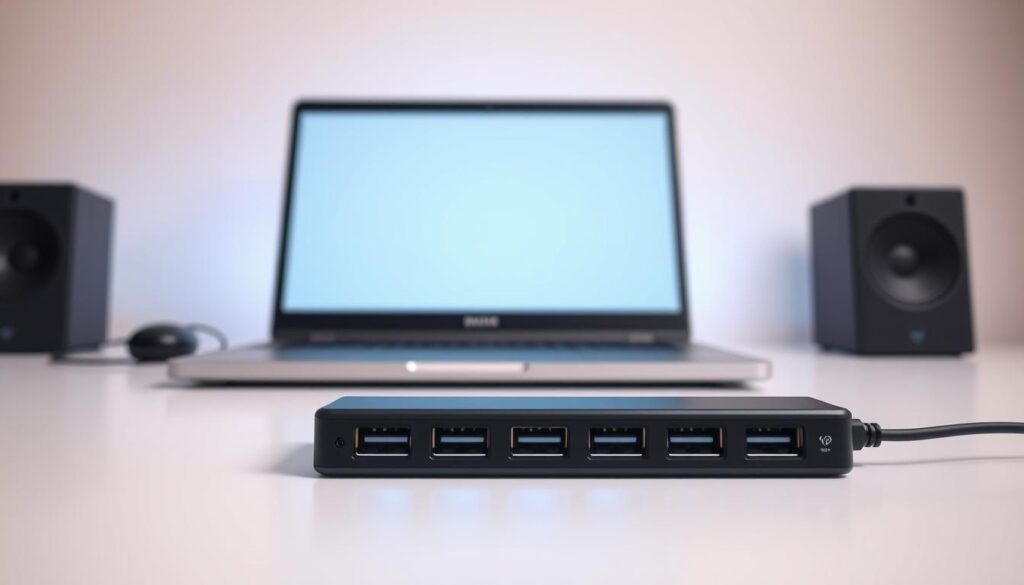
A few quick steps will have your drive recognized and your app ready to record shows.
Start on Samsung Tizen models (2019+): check the Samsung Apps Store under Video and install the player directly when available.
Samsung Smart TV — manual install tips
For 2015–2018 Tizen, format a usb drive to FAT32, extract the Tizen widget so the userwidget folder is at the USB root, then insert the drive. The app should appear under My Apps.
On some J series sets, disable Smart Hub App Auto Update to keep the app from being removed after a restart. Non‑Tizen models (E/ES/F/H/J4/J52) use the Orsay widget with SmartIPTV at the USB root. D series and older are not supported.
Loading your playlist and remote controls
Open the app and find the TV MAC in settings. Upload your M3U at siptv.eu/mylist so channels populate instantly.
Use the OK button for the channel list, INFO for program details, P+/P- and arrows to move pages, PLAY/PAUSE/STOP for playback, and GREEN/Guide for the EPG.
Firestick & Android TV basics
Install the player from Amazon Appstore or Google Play and grant storage permission when prompted. If your device supports external USB, confirm the drive appears under system storage and pick it as the recording target in the app.
| Task | What to do | Why it matters |
|---|---|---|
| Format drive | FAT32 recommended | Max compatibility across devices |
| Drive placement | Use main front/side port or powered hub | Reduces signal noise and power issues |
| Buffer | Adjust in app; revert to Auto if needed | Helps reduce stutter on weak streams |
Pro tip: Lock your TV’s MAC in the player to protect your playlist, and set a moderate buffer size before recording video to avoid interruptions. For a ready content source, GetMaxTV activates in two minutes and works across Firestick, Smart TV, Android, Mac, and Windows—so you can focus on connecting your usb and hitting record.
Use IPTV USB storage to Record: TimeShift, PVR, and Playback
Before you hit record, confirm TimeShift and PVR are active in the app and set Local TimeShift under Settings. This ensures live pauses write directly to your drive and scheduled jobs save where you expect.
Enable channel recording
Open the channel’s settings and toggle Timeshift via USB devices and PVR to the USB-driver. Set the TimeShift length so you can pause and rewind without losing recent video.
Scheduling and best practices
Use PVR for planned shows and add a few extra minutes before and after start and end times. Check the Guide/EPG to confirm program times and avoid missed segments.
Only rely on recording when the channel uses MPEG-TS over multicast or HTTP—those stream types give the most reliable results for TimeShift and PVR.
Quick fixes and stability tips
If playback stutters, increase the buffer size in settings and test again. Try another port or a faster drive if write speed is the issue.
Use the PLAY/PAUSE/STOP buttons for smooth control, and press INFO or UP to view program details while recording. Lock your MAC in app settings to protect your playlist from accidental resets.
“A quick buffer increase often fixes stutter; if it doesn’t, switch ports or clear space on the drive.”
- Enable TimeShift + PVR for a fail-safe recording setup.
- Verify stream type and use EPG to fine-tune timing.
- Keep the drive dedicated for recording and back up files regularly.
Tip: With GetMaxTV’s wide channel library and VOD, you’ll have plenty to record—and support if you need help tuning your settings.
Conclusion
This guide leaves you ready to capture live shows across devices and watch them later on your own schedule.
You’ve got clear steps to format drives, install the app, and set up TimeShift and PVR so recording runs smoothly at home.
Ready to watch now?, Pair your setup with GetMaxTV for 19,000+ live channels and 97,000+ VOD at $6.95/month. Activation takes two minutes and support is available 24/7.
Subscribe at https://getmaxtv.com/ or request a free trial via WhatsApp at +1 (613) 902-8620 to test how your usb and storage perform with our service.
Keep this section handy as you tweak settings and add a new device — you’ll be recording like a pro in minutes.
FAQ
What is USB recording for streaming services and how does it work?
USB recording lets you save live video streams to an external drive connected to your device. You launch the app, select a channel or program, and enable the record or Timeshift function. The device writes the stream to the drive so you can pause, rewind, or watch later. Make sure your drive is formatted correctly and has enough free space for long recordings.
Which devices support external drive recording and TimeShift?
Most modern smart TVs, Amazon Fire TV Stick, Android TV boxes, Windows PCs, and some Mac setups support external drive recording when the app and firmware allow it. Check the app’s requirements and your device manual for permissions and USB ports that supply power to the drive.
How do I format a drive for reliable recordings?
Use FAT32 for broad compatibility with older TVs, or exFAT for larger file sizes and faster transfers on newer systems. Format the drive on a computer if your device can’t do it. Always back up data before formatting, and leave at least 10–20% free space to avoid write errors.
What’s the difference between Timeshift, PVR, and on-demand playback?
Timeshift pauses and rewinds live streams in real time by buffering to your drive. PVR schedules and saves full programs for later viewing. On-demand playback streams stored or cloud content on request. Use Timeshift for short pauses and PVR for planned recordings.
How do I schedule recordings and avoid missed shows?
Use the built-in EPG (electronic program guide) to set start and end times and add padding before and after the show to catch late starts. Verify the channel stream type is supported for recording and confirm the drive has enough space before scheduling multiple shows.
Why does my recording stop or show errors mid-stream?
Common causes are insufficient drive speed, an unstable stream, wrong format, or power issues on the USB port. Try a faster drive, increase buffer size in app settings, use a powered USB hub, or switch to a steadier network connection. Also check MAC lock or DRM restrictions that may block recordings.
Can I record from any channel or stream type?
Some channels and stream protocols allow recording while others block it due to DRM or stream restrictions. Consult your app’s supported formats list and the channel’s rights. If a stream uses encryption, the app may prevent saving to external media.
How do I play back recorded files on other devices?
Many recorded files are saved in standard MPEG or TS formats and play on most media players. If the device uses a proprietary format, you’ll need the same app or a compatible player. Copy files to your computer to convert them with a transcoder like HandBrake if needed.
What are quick fixes for buffering, stutter, or failed pauses?
Increase buffer size in the app, switch to a faster drive, close background apps, and ensure a stable internet connection. Reboot the device, reformat the drive if errors persist, and update the app and firmware to reduce compatibility issues.
How much free space do I need per hour of recording?
Space varies by bitrate. Standard-definition streams use roughly 300–700 MB per hour, HD streams use 1–3 GB per hour, and higher-quality or 4K streams use more. Check your stream bitrates and plan capacity with a safety margin to avoid interruptions.
Are there security or privacy concerns with local recordings?
Yes. Recordings stored locally can be lost or accessed if the drive is misplaced. Use secure storage practices, encrypt sensitive files when possible, and keep firmware and apps updated to avoid vulnerabilities. Beware of recordings blocked by content owners for legal reasons.
Do I need special settings for Fire TV or Android TV boxes?
Grant the app storage permissions, connect a compatible drive, and check whether the box supports USB-powered drives or requires a powered hub. Some Fire TV models limit external drive access, so review device specs and app documentation for known limitations.

The GetMaxTV Blog Team is a group of IPTV technology writers and cord-cutting researchers who have been reviewing streaming services since 2023. We publish independent device setup guides, troubleshooting articles, and honest service comparisons. Every tutorial on this blog is tested on real devices — Fire Stick 4K Max, Roku Ultra, Samsung Smart TV, Apple TV 4K, and Android phones. We verify every step before publishing and update our content quarterly.